
Global Flags
| Flags | Description |
|---|---|
| -d —debug | Enable debug mode |
| -n —hostname | Tailscale hostname |
| -k —insecure | Skip TLS Verification |
| -q —quic | Use QUIC protocol |
| -s —server | Krkn Server Hostname/IP |
| -t —tailscale | Use Tailscale for connection |
| -w —webhook port | Port to use for webhook int |
Krkn Flags
| Command | Description |
|---|---|
| completion | Generates the autocompletion script for the specified shell |
| config | Manage the cache configuration |
| dumps | Parse, and Analyze Dump Files |
| files | Manage Rules, Wordlists and Mask FIles |
| hashes | Manage or query cracked hashes |
| jobs | Manage jobs |
| listen | Start webhook listener |
| logs | View local or server (remote) logs |
| server | Manage the Krkn Server |
| service | Manage the webhook listener service |
| toast | Manage toast notifications |
| users | Manage users |
| webhooks | Manage webhooks |
First Time Setup
To utilize the Krkn Client (krknc) you will need to store the token received in your email in the environment variables. This can optionally be set by using thekrknc install command.
Windows
Windows
In powershell
set KRKN_API_TOKEN=<token>Linux/Darwin
Linux/Darwin
Dynamically determine the shell in use and append token entry
Add Configuration Settings
Set the Server, Tailscale (optional), hostname (tailscale hostname if on tailscale otherwise IP or resolvable hostname by Server) and Webhook Type/Port.Configuration
- username: Your username for authentication
- server: Server address (e.g., localhost:8443 or tailscale_hostname-krkn:8443)
- tailscale: Use Tailscale (true/false)
- quic: Use QUIC protocol (true/false)
- insecure: Skip TLS verification (true/false)
- debug: Enable debug mode (true/false)
- webhook-port: Webhook listener port (number)
- hostname: Tailscale hostname (string)
Config
| Sub-Command | Description |
|---|---|
| clear | Clear all configurations |
| get | Get configuration value(s) |
| set | Set configuration value |
| unset | Unset a configuration value |
Get
Get
Required Permissions: N/A
get command can be used to view your current settings.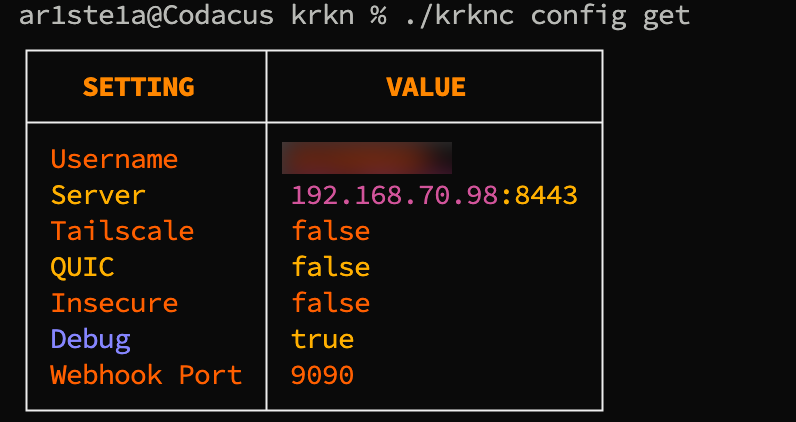
Set
Set
Required Permissions: N/A
set command can be used to set a configuration value
Unset
Unset
Required Permissions: N/A
unset command can be used to remove a value from a single key
Clear
Clear
Required Permissions: N/A
clear command can be used to clear all entries in the configuration.Dumps
Dump can be used to facilitate the parsing and analyzing of dump files. This includes:- Parsing hash information from NTDS.dit and the SYSTEM hive
- Parsing hash information from an LSASS Minidump
- Parsing hash information from a previous SecretsDump (Supports History and Status)
| Sub-Command | Description |
|---|---|
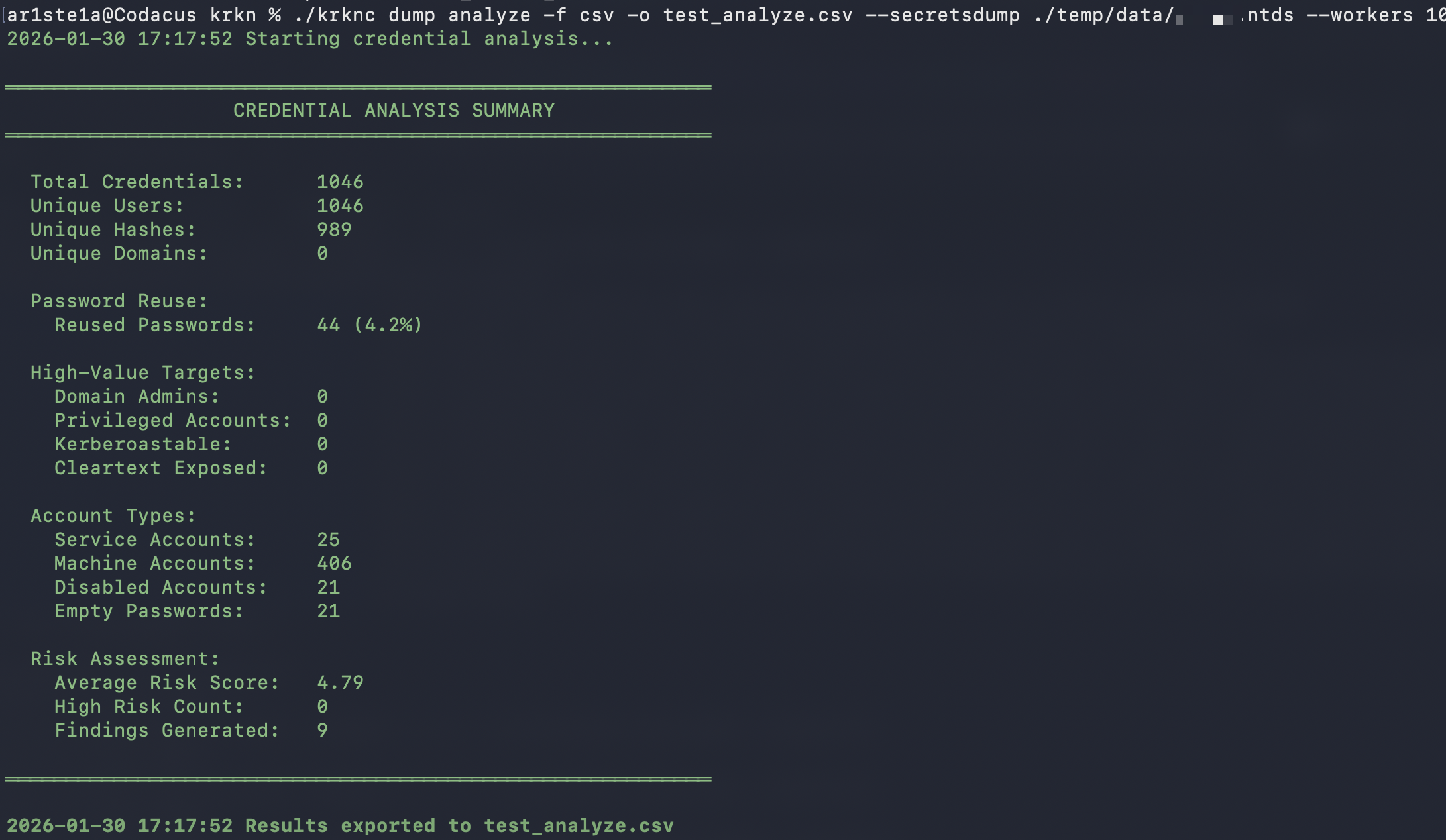
| analyze | Perform an analysis of a companies password policy and current hash landscape |
| parse | Parse hash information from given input(s) |
Analyze
Analyze
Required Privileges: N/A
| Flag | Description | Default |
|---|---|---|
| —dedupe | Deduplicate credentiasl across all sources | True |
| -f —format | Output Format (xlsx, csv, json, yaml, xml) | Auto-Detect from output file |
| -g —groups | Group membership file | Nil |
| —include-history | Include password history entries in analysis | False |
| —kerberoast | Kerberoast hash file | Nil |
| -l —lsass | LSASS Parsed output file | Nil |
| —ntds | NTDS parsed output file | Nil |
| -o —output | Output file path (required) | Nil |
| -p —policy | Password Policy File | Nil |
| —potfile | Potfile in hash:password format | Nil |
| —secretsdump | Secrets dump output file(s) | Nil |
| —strict | Fail on parse errors instead of skipping | False |
| —timeout | Analysis timeout duration | 30m0s |
| —workers | Number of parallel workers for parsing | 4 |
Parse
Parse
Required Privileges: N/A
| Args | Description |
|---|---|
| impacket | Parse an Impacket SecretsDump file |
| minidump | Parse a minidump file |
| ntds | Parse an NTDS.dit file with a SYSTEM file |
impacket
impacket
| Flags | Description |
|---|---|
| -p —file-prefix | Prefix for output file(s) |
impacket subcommand can be used to parse a SecretsDump file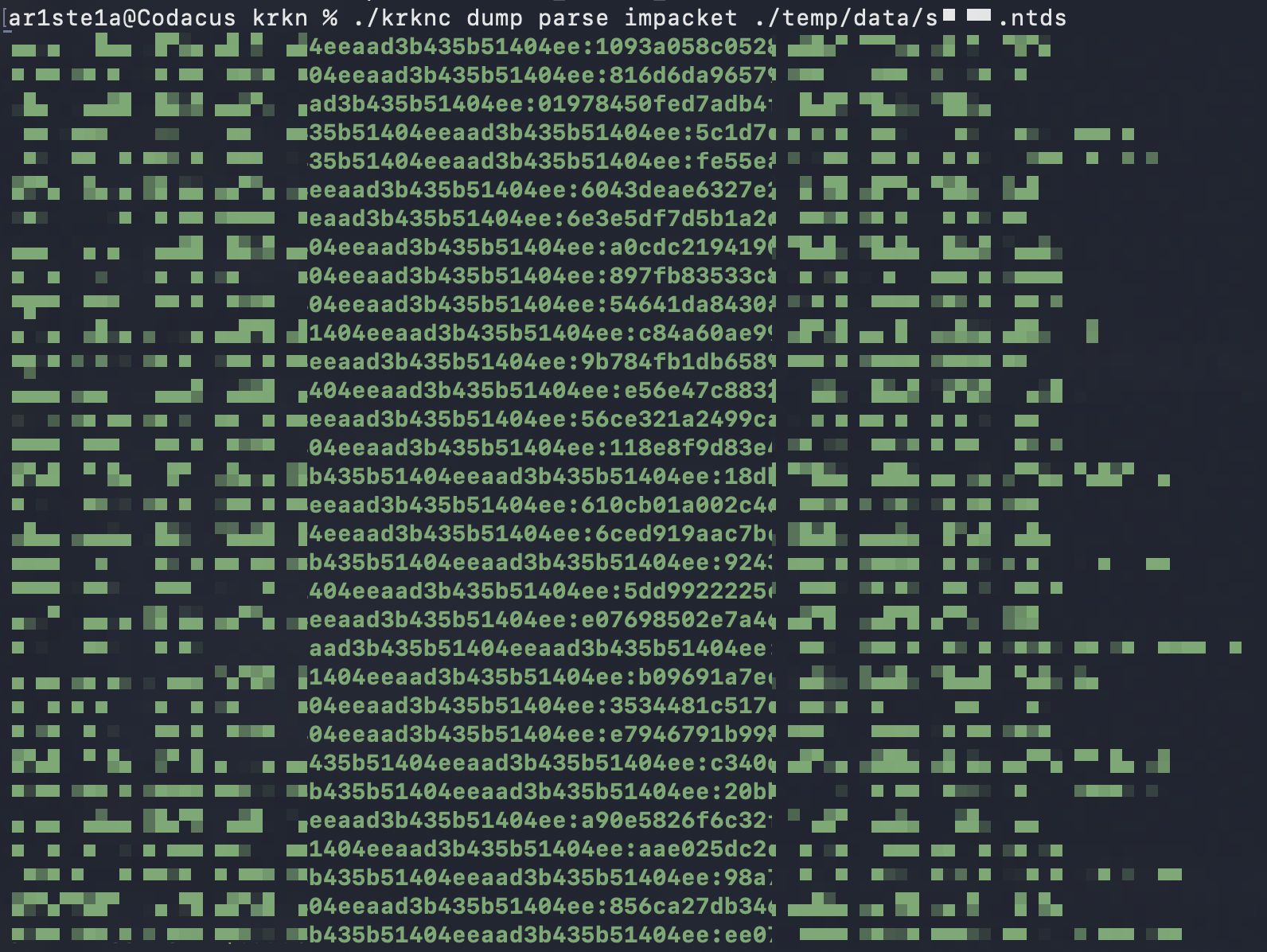
minidump
minidump
| Flags | Description |
|---|---|
| -p —file-prefix | Prefix for output file(s) |
minidump subcommand can be used to parse hashes from an lsass minidump file.
NTDS
NTDS
| Flags | Description |
|---|---|
| -p —file-prefix | Prefix for output file(s) |
ntds subcommand can be used to parse hashes from an NTDS.dit file and its corresponding SYSTEM file.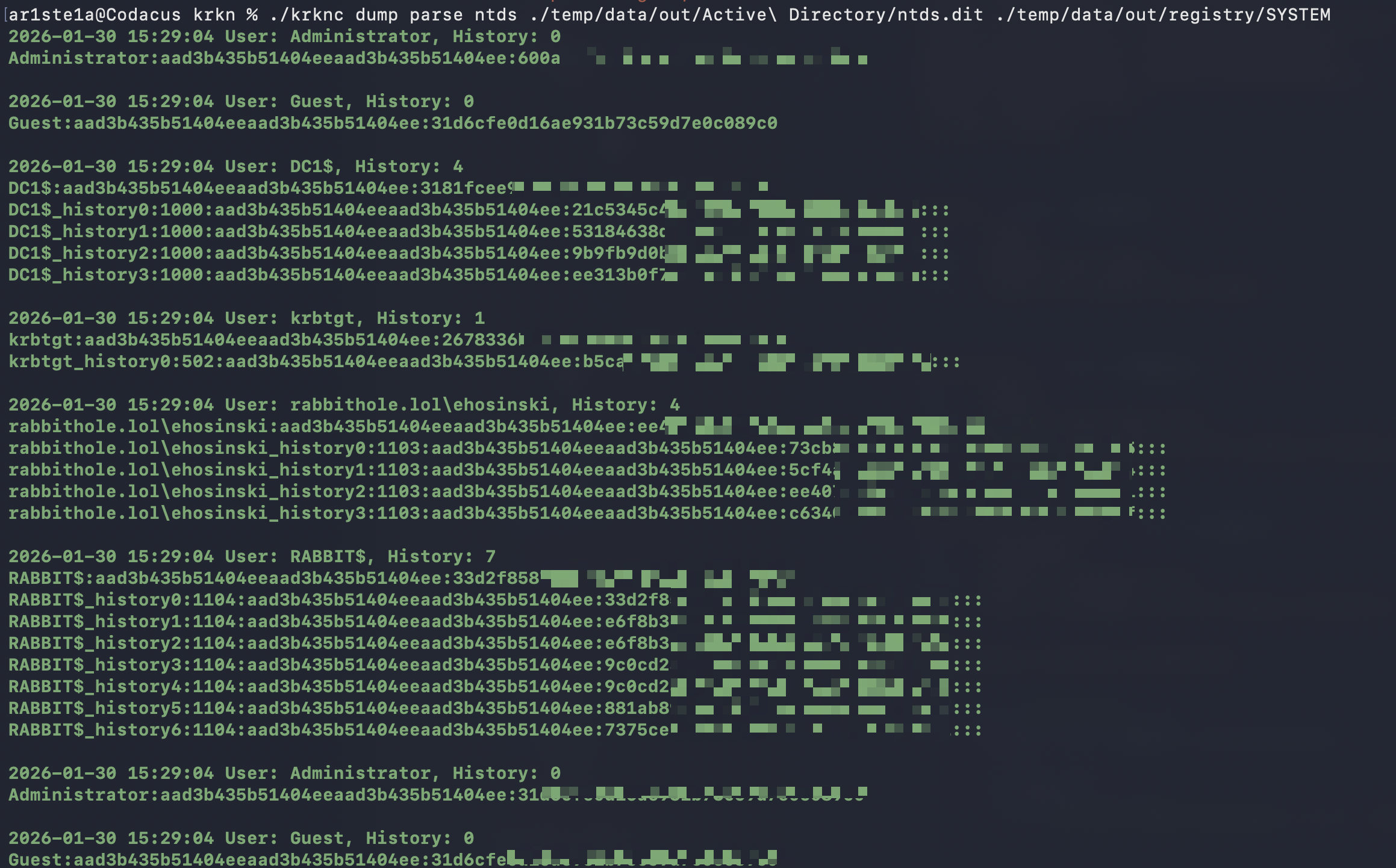
Logs
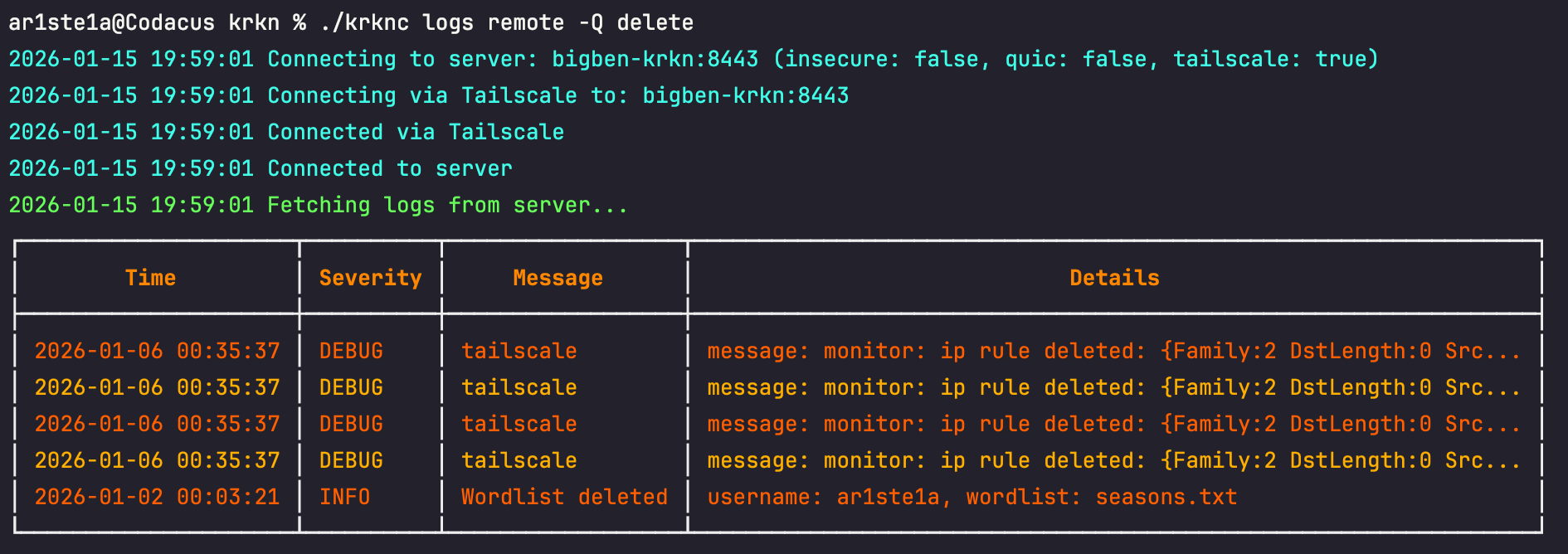
Logs can be queried to facilitate troubleshooting and debugging both remotely on the Krkn Server and locally.| Sub-Command | Description |
|---|---|
| local | View local client logs |
| remote | View Krkn Server logs |
Remote
Remote
Required Privileges: Admin
| Flag | Description | Type |
|---|---|---|
| -E —end | End date for logs (defaults to ‘now’) | string |
| -L —last | Number of logs to show (default: 50) | int |
| -T —no-truncate | Do not truncate log details | bool |
| -V —severity | Comma-delimited log severity to show (debug, info, warning, error, fatal) | string |
| -S —start | Start date for logs (e.g., ‘8 minutes ago’, ‘Jan 01, 2026’) | string |
| -Q | Query using a keyword value | string |
Local
Local
Required Privileges: N/A
| Flag | Description | Type |
|---|---|---|
| -E —end | End date for logs (defaults to ‘now’) | string |
| -L —last | Number of logs to show (default: 50) | int |
| -T —no-truncate | Do not truncate log details | bool |
| -V —severity | Comma-delimited log severity to show (debug, info, warning, error, fatal) | string |
| -S —start | Start date for logs (e.g., ‘8 minutes ago’, ‘Jan 01, 2026’) | string |
| -Q | Query using a keyword value | string |
Users
| Sub-Command | Description |
|---|---|
| list | List all users |
| create | Create a new user |
| delete | Delete a user |
| set-role | Set a users role |
| reset-token | Reset the users token and send the ma new one in email |
- Admin - Unfettered access to all gRPC commands
- User - Access to Job Creation, querying and status’
- Reader - Query access only
List
List
Required Privileges: Admin
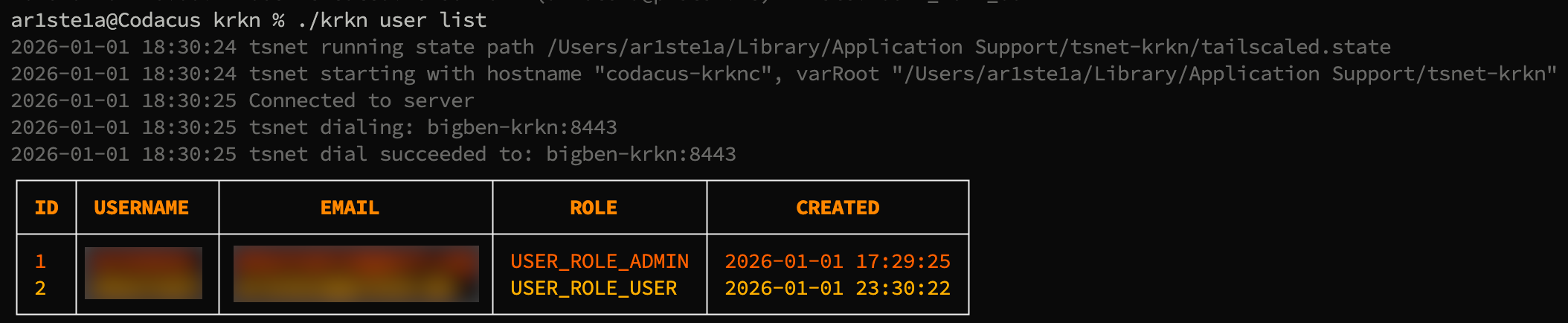
list command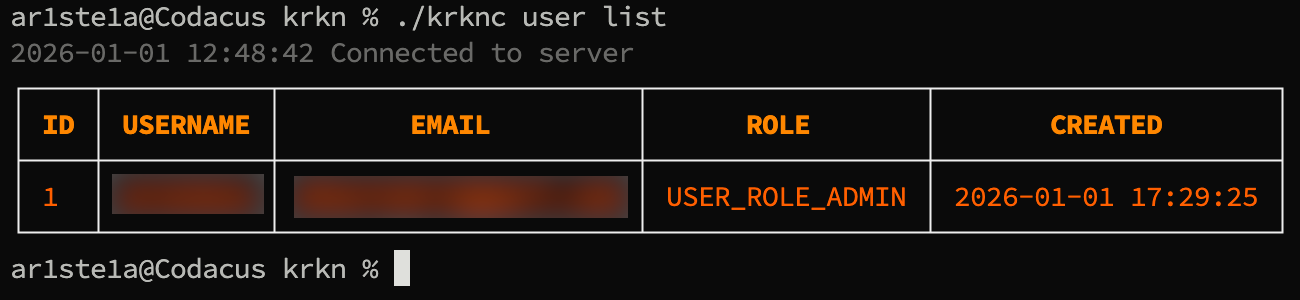
Create
Create
Required Privileges: Admin
| Args | Description |
|---|---|
| 1 | username |
| 2 | email address |
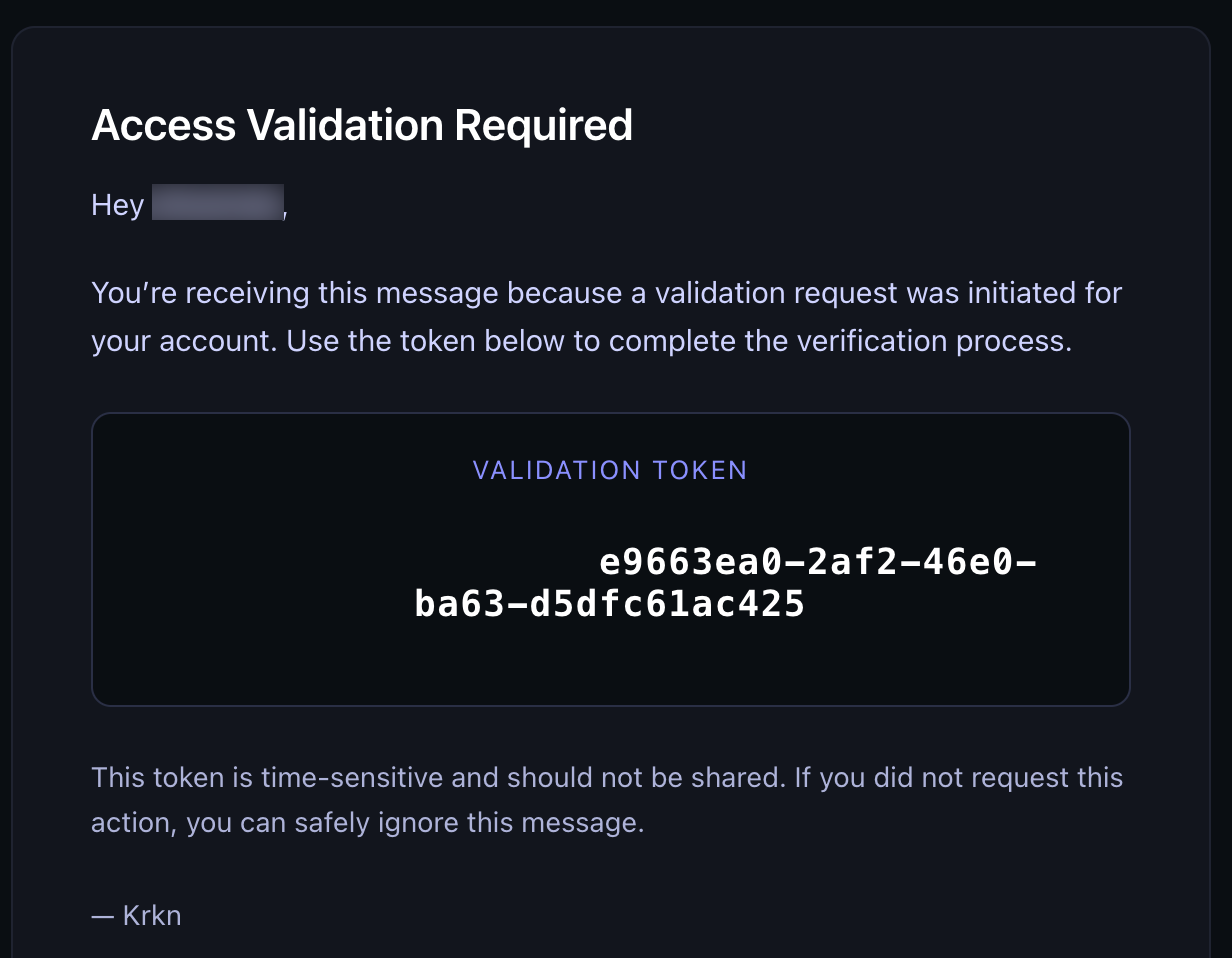
user create command. A token will be sent to their email address.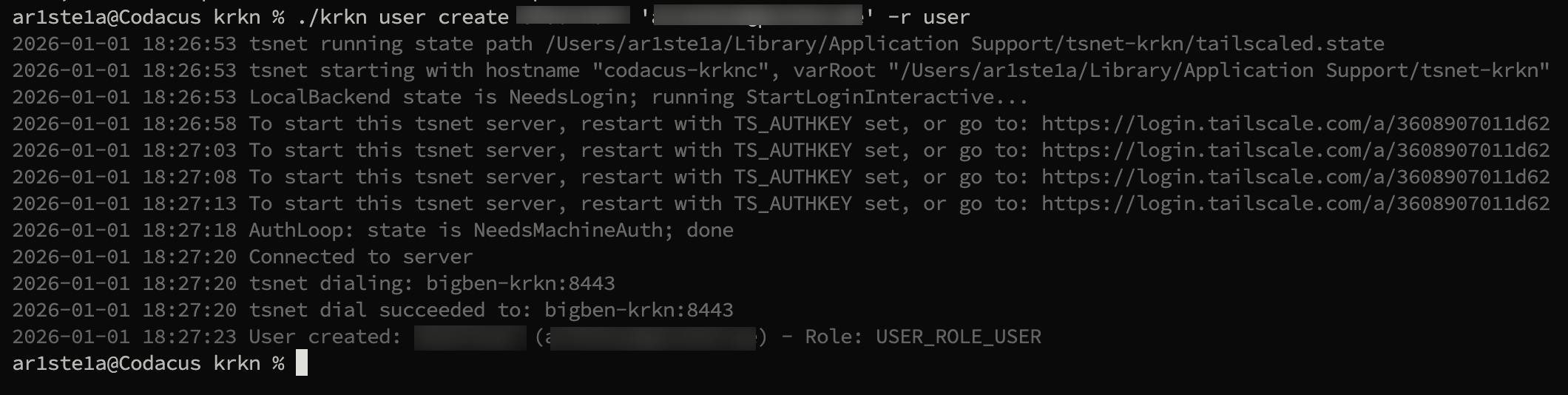
Delete
Delete
Required Privileges: Admin
| Args | Description |
|---|---|
| 1 | username |
delete subcommand can be used to delete a user from the Krkn Server.
Set-Role
Set-Role
Required Privileges: Admin
| Args | Description |
|---|---|
| 1 | Username |
| 2 | Role (admin, user, reader) |
Reset-Token
Reset-Token
Required Privileges: Admin
| Args | Decription |
|---|---|
| 1 | Username |
Files
| Sub-Command | Description |
|---|---|
| masks | Manage mask files |
| rules | Manage rule files |
| wordlists | manage wordlist files |
File Types
Masks
Masks
The masks are standard mask files supported by hashcat Masks are structured brute-force attack patterns
Mask Tokens
| Token | Meaning |
|---|---|
?l | lowercase letter (a-z) |
?u | uppercase letter (A-Z) |
?d | digit (0-9) |
?s | symbol |
?a | all of the above |
Sample Masks
| Pattern | Meaning |
|---|---|
?u?l?l?l?l?d?d | Capital + 4 lowercase + 2 digits |
?l?l?l?l?l?l?d?d | 6 letters + 2 digits |
Summer?d?d?d! | “Summer###!” |
?u?l?l?l?l?l?d! | Capitalized word + digit + ! |
Example Command
krknc job create hashes.txt -T 1000 -A 3 -M ?u?l?l?l?l?l?d?d`Rules
Rules
Wordlists
Wordlists
The wordlists are wordlist files for use by hashcat
Sub-Commands
Upload
Upload
Required Privileges: Admin
| Args | Description |
|---|---|
| 1 | the local file to upload to the Krkn Server |
upload subcommand can be used to upload a file from your host to the Krkn Server.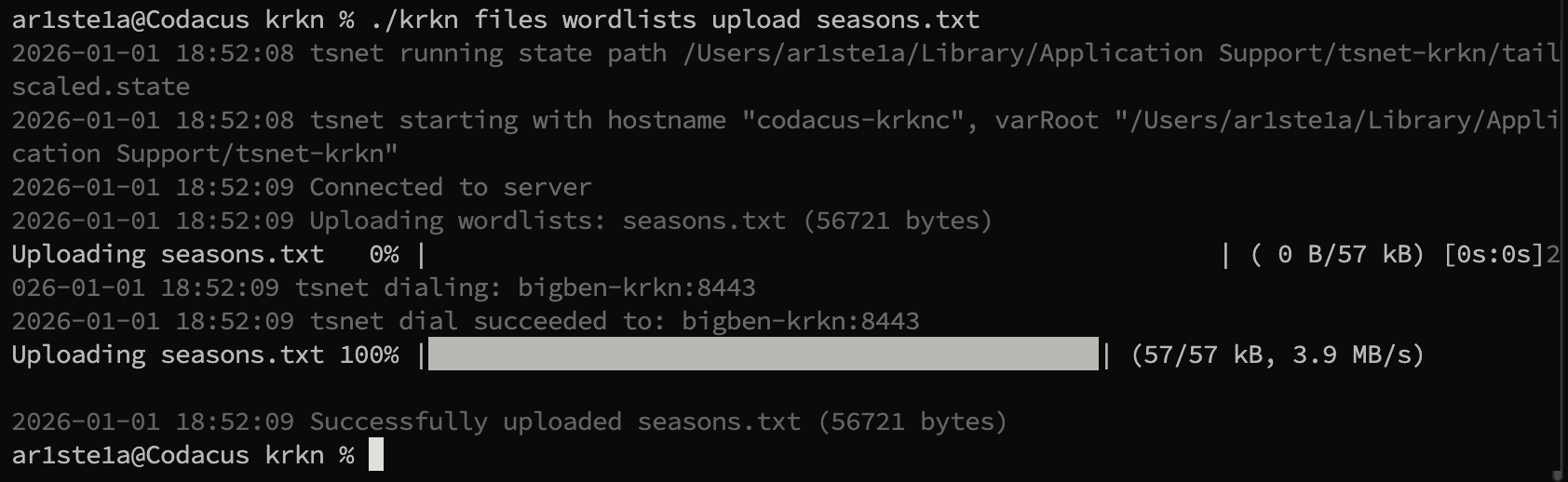
Download
Download
Required Privileges: Admin
| Args | Description |
|---|---|
| 1 | The url of the downloadable file. For github, ensure you are using the github raw file |
| 2 | The name to save the file as on the Krkn Server |
download subcommand can be used to prompt the Krkn Server to download a file from a given url.
List
List
Required Privileges: Admin, User
list subcommand can be used to list files of the specified type on the Krkn Server.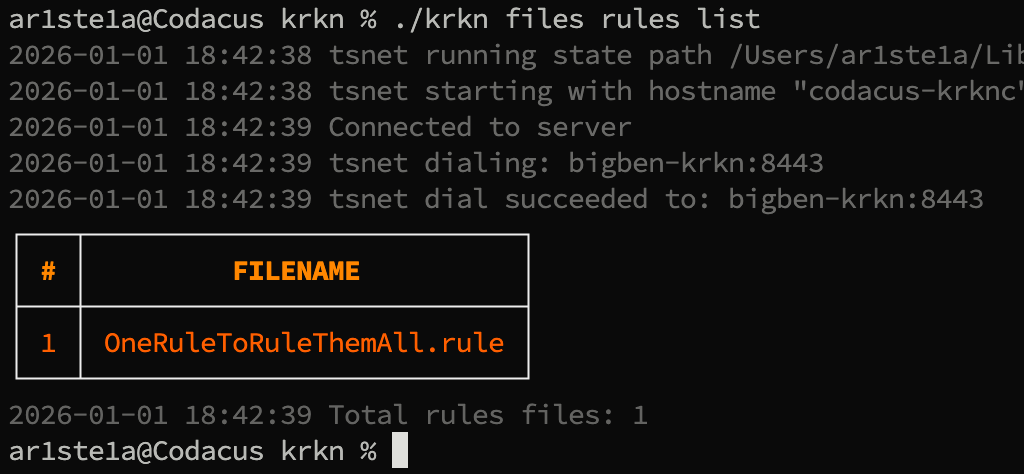
Head
Head
Required Privileges: Admin
| Args | Description |
|---|---|
| 1 | The name of the file to read from |
| 2 | The number of lines to read |
head subcommand can be used to read the first N lines in the specified file.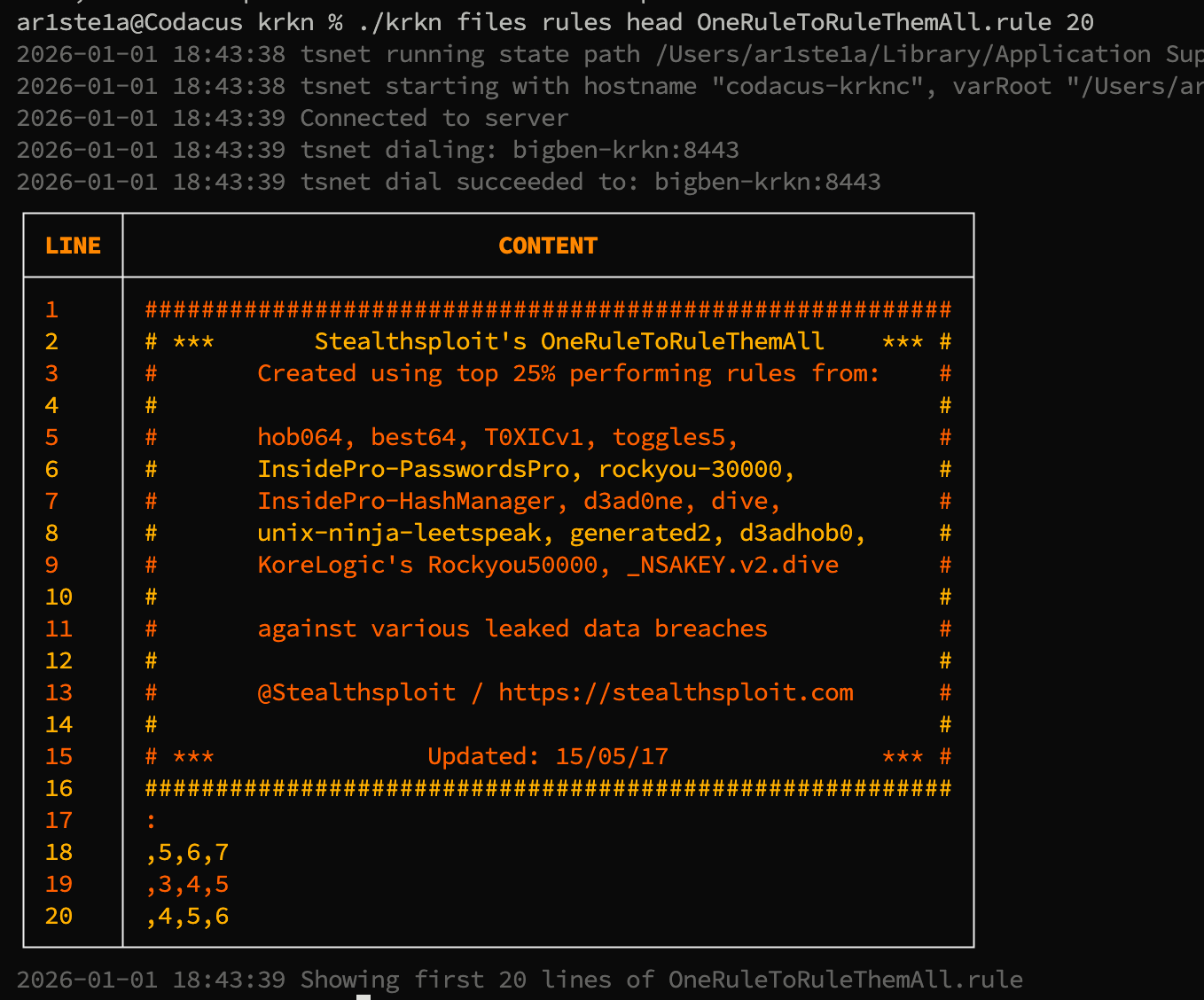
Tail
Tail
Required Privileges: Admin
| Args | Description |
|---|---|
| 1 | The name of the file to read from |
| 2 | The number of lines to read |
tail subcommand can be used to read the last N lines in the specified file.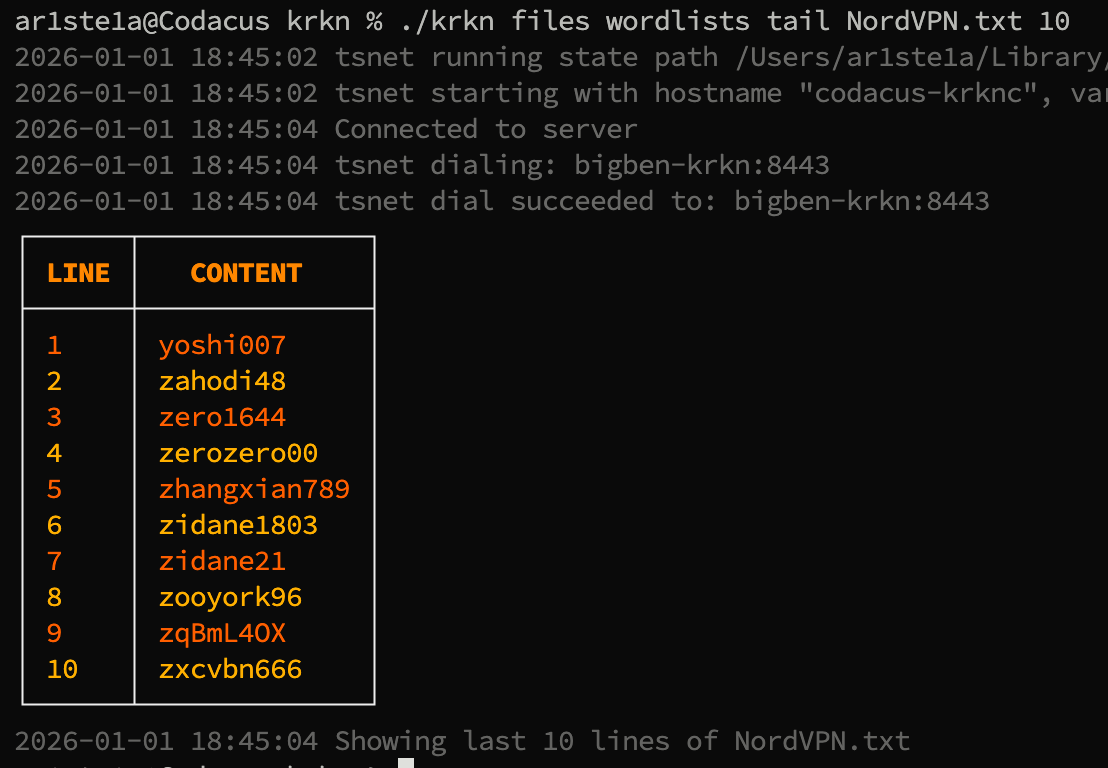
Sum
Sum
Required Privileges: Admin
| Args | Description |
|---|---|
| 1 | The name of the file to checksum |
sum subcommand can be used to determine if the Sha256 sum of the downloaded or uploaded file matches what is expected.
Delete
Delete
Required Privileges: Admin
| Args | Description |
|---|---|
| 1 | The name of the file to delete |
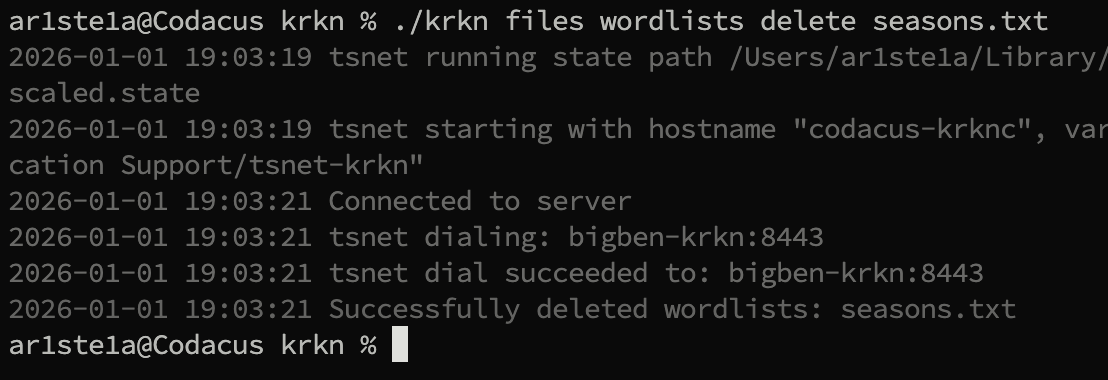
delete subcommand can be used to delete the specified file from the Krkn Server.Hashes
Thehashes subcommand can be used to query or upload hashes to the Krkn Server.
| Sub-Commands | Description |
|---|---|
| query | Query the provided hashes |
| recount | Perform a recount of all hash statistics |
| stats | Show hash statistics |
| upload | Upload cracked hashes from file or stdin |
| id | Attempt to identify the hashcat mode for a given hash |
| defang | Remove client PII from a given hash |
Sub-Commands
Query
Query
Required Privileges: Admin, User, Reader
| Flags | Description |
|---|---|
| -T | The hashcat mode of the provided hashes |
| -H | Provide a comma delimited list of hashes |
| -F | Provide a file of hashes |
| -O | Output file for results |
| -D | Dispaly results to stdout |
query subcommand can be used to query the Krkn Server for previously cracked hashes
Recount
Recount
Required Privileges: Admin
recount subcommand can be used to order the Krkn Server to perform a hash recount. This will force the Krkn Database to perform a recount of all cracked hashes and adjust its counters.
Stats
Stats
Required Privileges: **Admin**
| Args | Description |
|---|---|
| mode | The hashcat mode to query stats for |
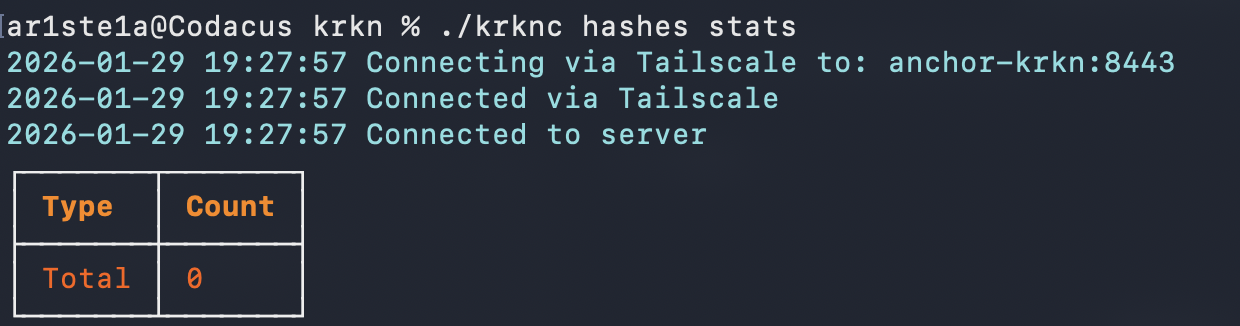
stats subcommand can be used to query the hash stats from the Krkn Server. The hashcat mode is optional. If not supplied the entire hash count will be returned.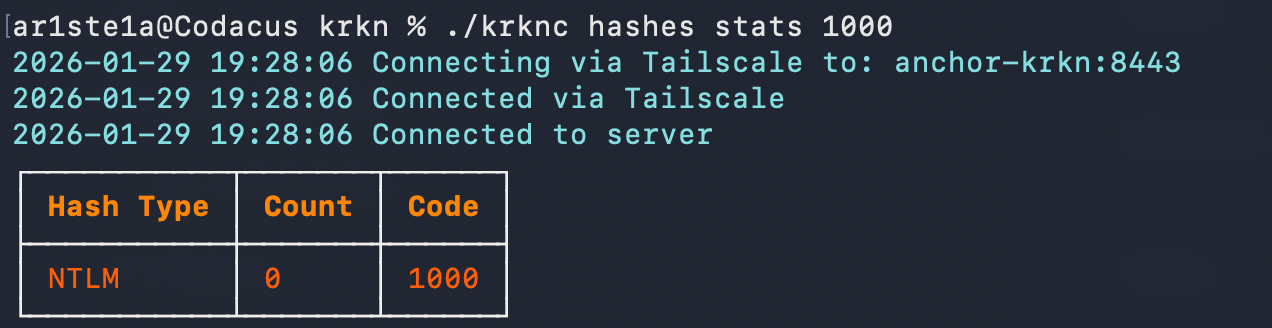
Upload
Upload
Required Privileges: Admin
| Args | Description |
|---|---|
| 1 | Hashcat mode |
| 2 | The local file to upload containing the hashes |
upload subcommand can be used to upload previously cracked hashes to the Krkn Server. These hashes are then added to the database.
Id
Id
Required Privileges: N/A
| Args | Description |
|---|---|
| hash | The hash to identify |
id subcommand to identify potential hashcat types for a given hash.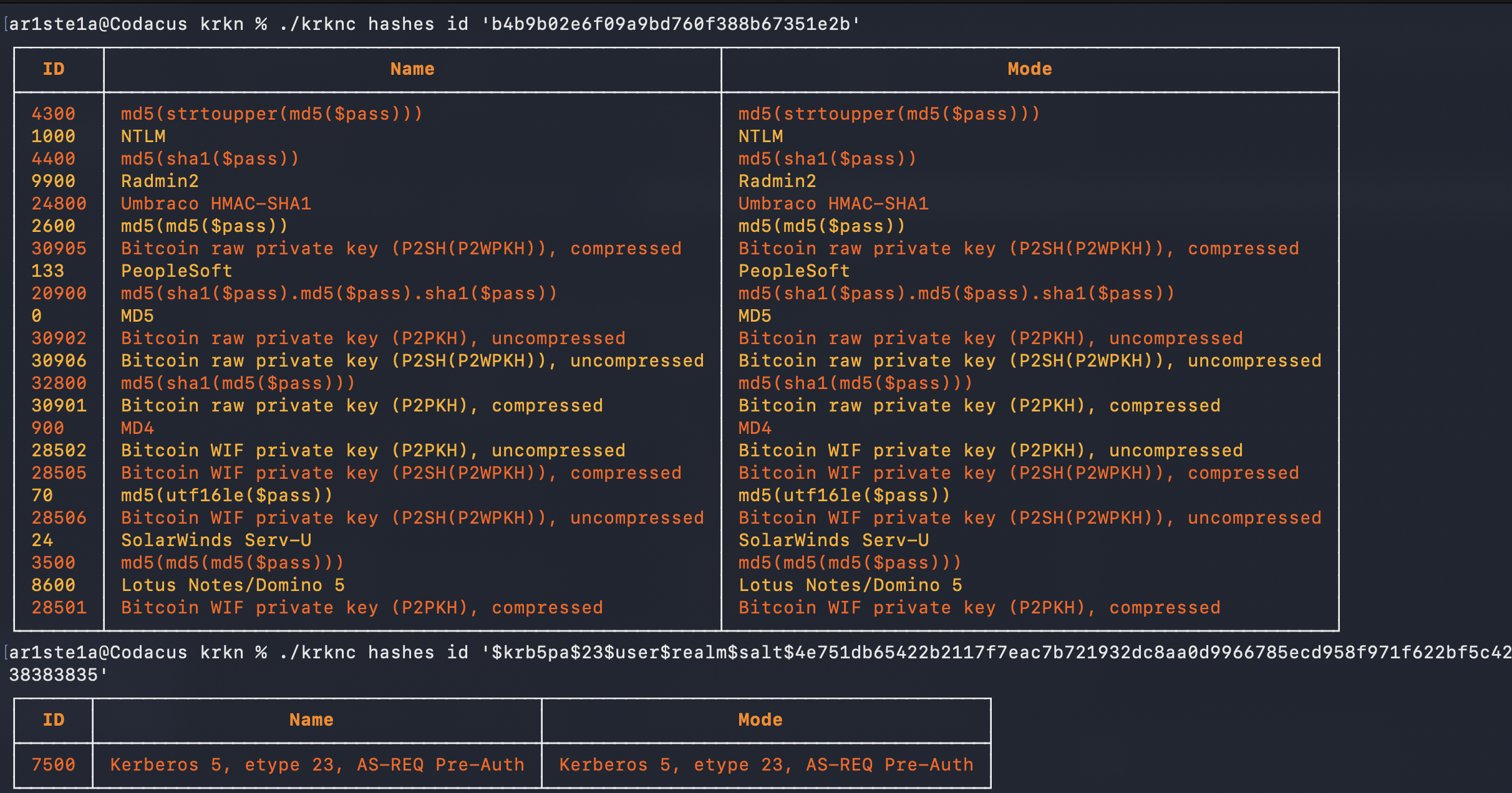
Defang
Defang
Required Privileges: N/A
| Args | Description |
|---|---|
| hash | The hash to defang |
| mode | The hashcat mode of the hash |
defang subcommand can be used to remove client data from a given hash including:- Domain
-
Username

Jobs
| Sub-Command | Description |
|---|---|
| create | Create a new job |
| delete | Delete a job |
| download | Download job results |
| get | Get a jobs details |
| list | List all jobs |
| cancel | Cancel a running job |
jobs subcommand encompasses the distributed KCat hash cracking system incorporated into the Krkn Service.
Create
Create
Required Privileges: User, Admin
Args
| Args | Description |
|---|---|
| 1 | The local hashes file for the job |
Flags
| Flag | Description |
|---|---|
| -T —hashtype | The hashcat mode to use for the job |
| -W —wordlist | The wordlist to use for the job |
| -M —masks | Name of masks file on server (required for modes 3, 6, 7) |
| -R —rules | Name of rules file on server |
| -A —attack-mode | The attack mode to use for the job |
| -D —description | Description of the job |
| —full-suite | Run full attack suite (ignores attack-mode, runs multiple strategies) |
| —increment | Enable mask increment mode (modes 3, 6, 7 only) |
| —increment-min | Stop mask incrementing at this length |
| —increment-max | Start mask incrementing at this length |
| —append | Mask to append to each candidate |
| —prepend | Mask to prepend to each candidate |
| -L | Listen after creation using the host, port and webhook type stored in the config |
Attack Modes
- 0 - Straight/Dictionary: Uses wordlist (-w required)
- 1 - Combination: Combines words from wordlist (-w required)
- 3 - Brute-force/Mask: Uses mask patterns (-m required)
- 6 - Hybrid Wordlist+Mask: Appends mask to wordlist words (-w and -m required)
- 7 - Hybrid Mask+Wordlist: Prepends mask to wordlist words (-w and -m required)
Examples
- Dictionary attack with rules
krknc job create hashes.txt -T 1000 -A 0 -W rockyou -R best64
- Mask attack with increment
krknc job create hashes.txt -T 1000 -A 3 -M "?a?a?a?a?a?a" --increment --increment-min 4 --increment-max 8
- Hybrid attack
krknc job create hashes.txt -T 1000 -A 6 -W rockyou -M "?d?d?d"
- Full suite attack (runs multiple attack strategies)
krknc job create hashes.txt -T 1000 --full-suite
create subcommand can be used to create a new job and place it into the queue on the Krkn Server.
Delete
Delete
Required Privileges: Job Owner, Admin
| Args | Description |
|---|---|
| 1 | The id of the job to delete |
delete subcommand can be used to delete an enqueued job.
Download
Download
Required Privileges: Job Owner, Admin
| Args | Description |
|---|---|
| 1 | The ID of the job to download |
| 2 | The name of the output file |
download subcommand can be used to retrieve all cracked hashes from a completed job.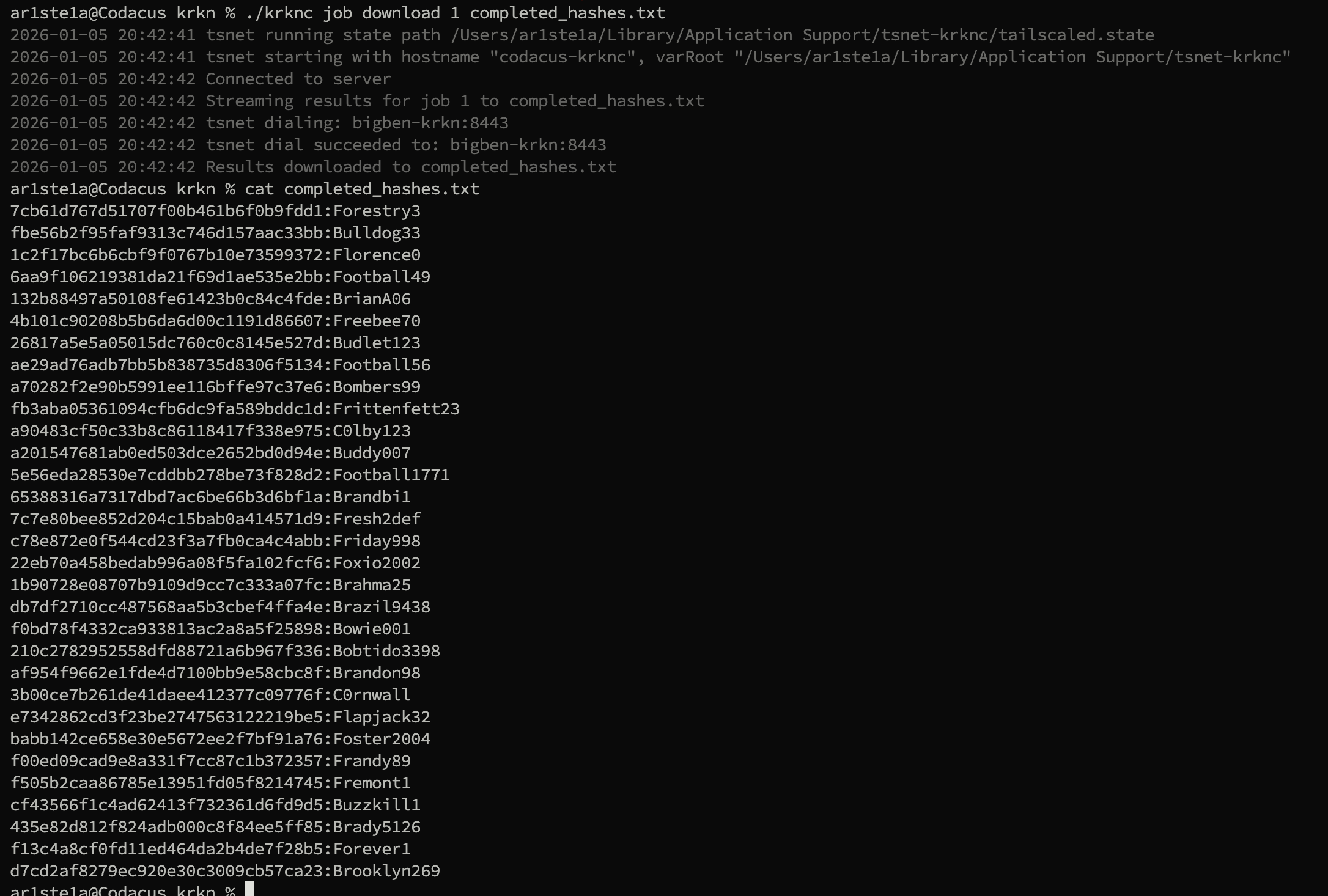
Get
Get
Required Privileges: Job Owner, Admin
| Args | Description |
|---|---|
| 1 | The id of the job to retrieve |
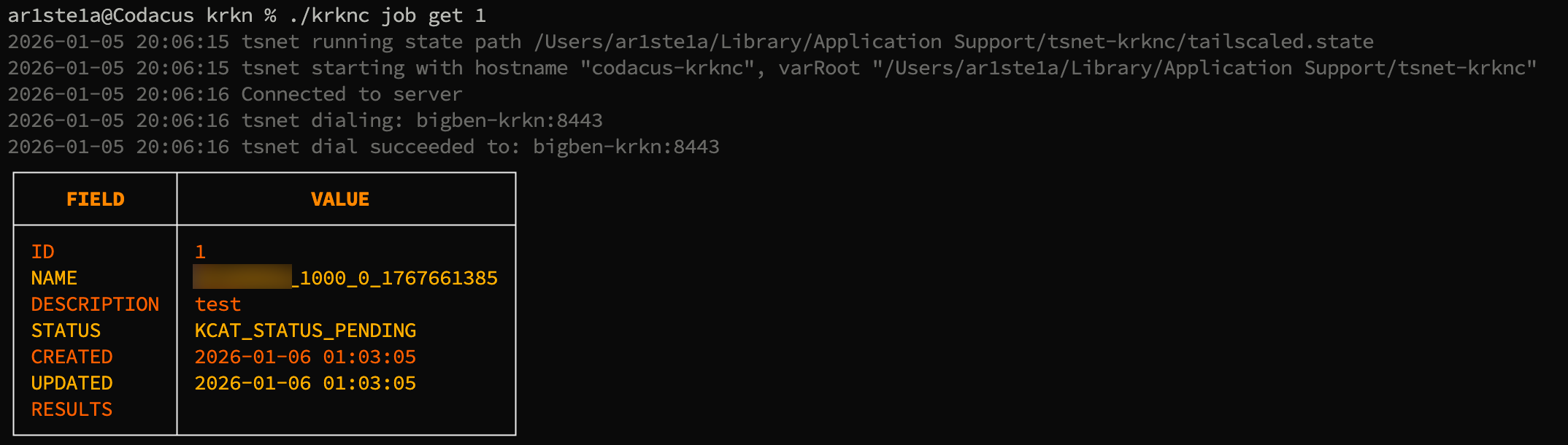
get subcommand can be used to get the status and configuration of a specific job by its id .The table always includes the persisted fields:| Field | Source |
|---|---|
ID | Job ID |
NAME | Job name |
DESCRIPTION | Job description |
STATUS | Persisted KCAT status (PENDING / RUNNING / COMPLETED / …) |
CREATED | Created at |
UPDATED | Updated at |
RESULTS | Results summary |
WORKER | Last Tentacle instrument that worked the batch |
CRACKED | Persisted cracked count |
REMAINING | Persisted remaining count |
Live Hashcat Fields
When a Tentacle worker is currently running the batch for this job, the table also appends live hashcat snapshot fields forwarded by the worker every 5 seconds (see krkns → Live Job Status). These rows are absent for jobs that haven’t started yet or have already finished:| Field | hashcat source field (kcat.Status) |
|---|---|
LIVE PROGRESS | Progress — X/Y (Z%) |
LIVE RECOVERED | Recovered — X/Y (Z%) Digests, X/Y (Z%) Salts |
LIVE RECOVERED # | Numeric cracked count parsed from Recovered |
LIVE TIME STARTED | TimeStarted (absolute) |
LIVE TIME ESTIMATED | TimeEstimated (absolute) |
LIVE TIME REMAINING | TimeEstimatedRelative (e.g. “3 hours, 12 mins”) |
LIVE SPEED | TotalSpeed — aggregate H/s across all devices |
LIVE SESSION | hashcat session name |
LIVE SNAPSHOT AT | RFC3339 timestamp the snapshot was captured |
List
List
Required Privileges: Job Owner, Admin
list subcommand can be used to list jobs and their status’.For any job in the list that is currently being cracked by a Tentacle worker, the response includes the same live hashcat snapshot fields as
job get (progress, recovered count, time started, time remaining, total speed, …). The snapshot comes from the krkns in-memory cache so listing all jobs still takes one round-trip regardless of how many are running.
Cancel
Cancel
| Args | Description |
|---|---|
| job-id | The id of the running job |
cancel subcommand can be used to cancel a running job.Webhooks
Krkn Clients can create webhooks to manage jobs and updates. For the client to register for Webhooks when using tailscale, a new node will need to be added to the Tailscale network.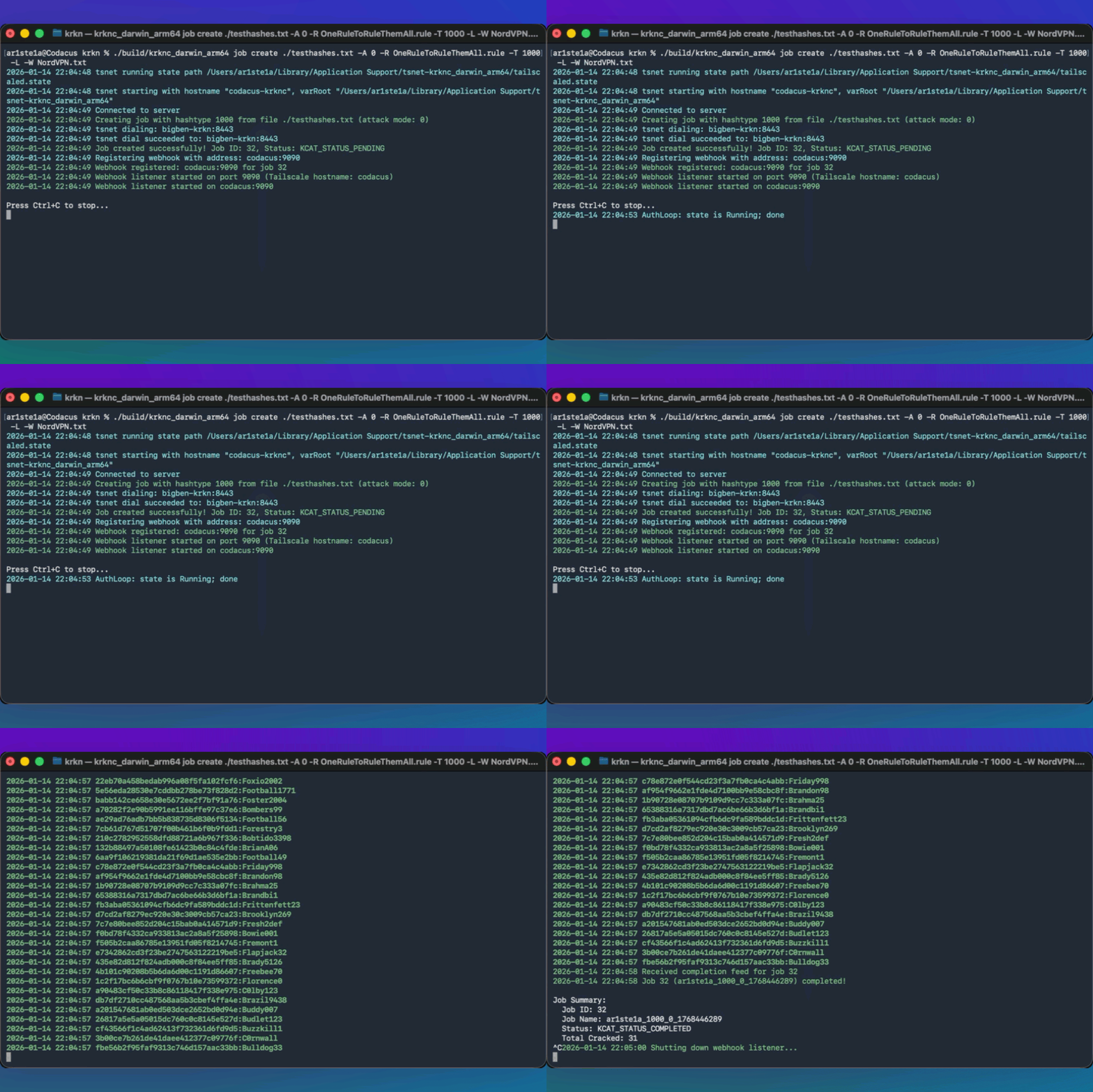
Webhook Types
Real-Time
Real-Time
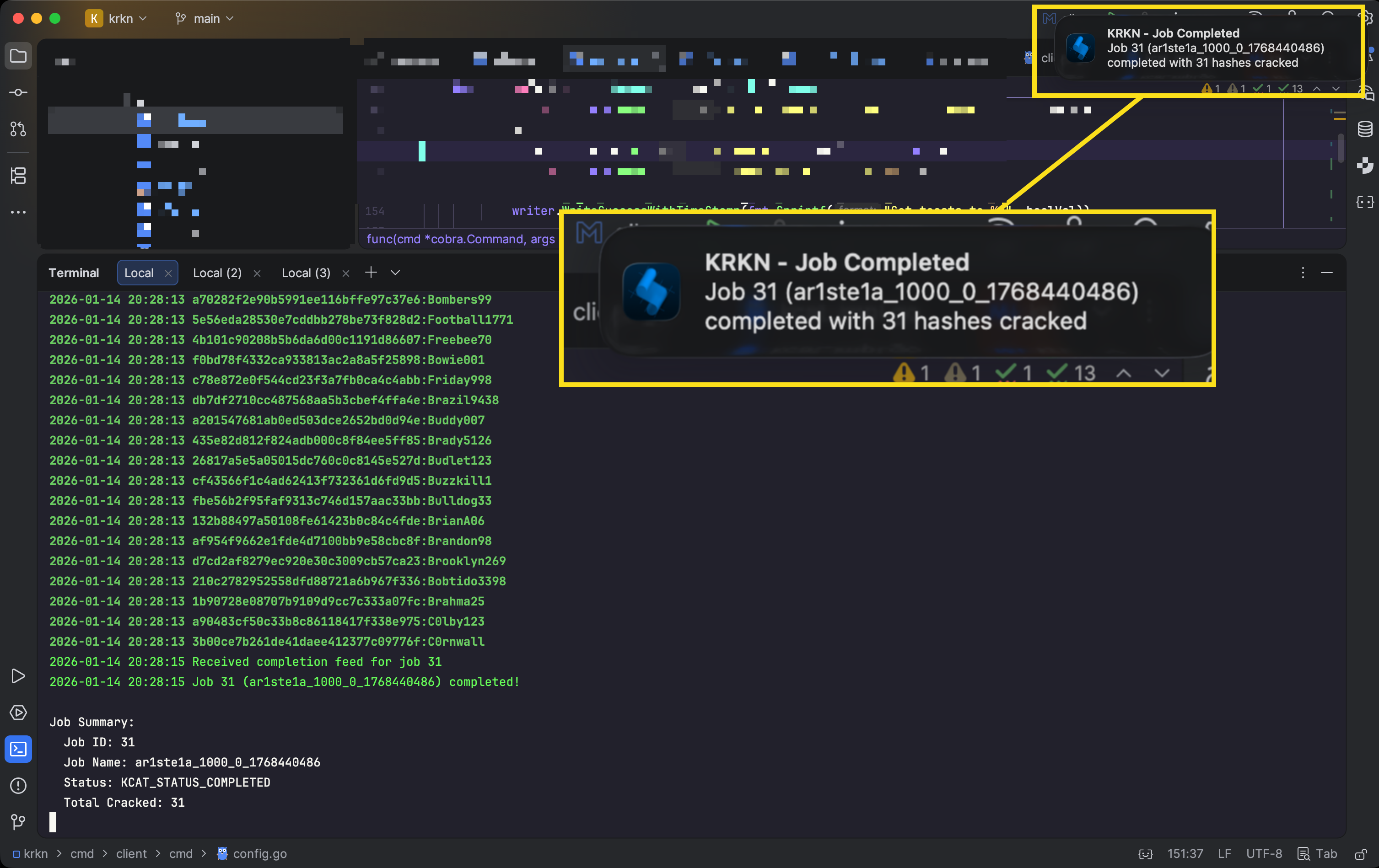
All cracked passwords will be sent back to your host
Completion
Completion
When the job is completed, a notification will be sent back to your host
All
All
Both real-time and completion updates will be sent back to your host
Sub-Commands
Listen
Listen
| -N, —notifications | enable OS notifications |
|---|---|
| -p, —port | port to listen on (default 9090) |
| -S, —save-toasts | save toast messages to file (default true) |
| —system | run in system service mode |
listen subcommand can be used to register and listen in realtime for job updates.Service
Service
| Sub-Command | Description |
|---|---|
| install | Install the webhook listener service |
| uninstall | Uninstall the webhook listener service |
| status | Get the status of the webhook listener service |
service subcommand can be used to register/deregister a webhook service for listening on the host system.Install
Install
| Flag | Description |
|---|---|
| -N, —notifications | Enable OS notifications (default true) |
| -p, —port | Port to listen on (default 9090) |
install subcommand can be used to install the webhook service on the host system.Uninstall
Uninstall
The
uninstall subcommand can be used to uninstall the webhook service on the host system.Status
Status
The
status subcommand can be used to query the webhook service on the host system.Toast
| Sub-Command | Description |
|---|---|
| list | Show toast messages |
| read | Mark all toast messages as read |
| clear | Remove all toast messages |
List
List
The
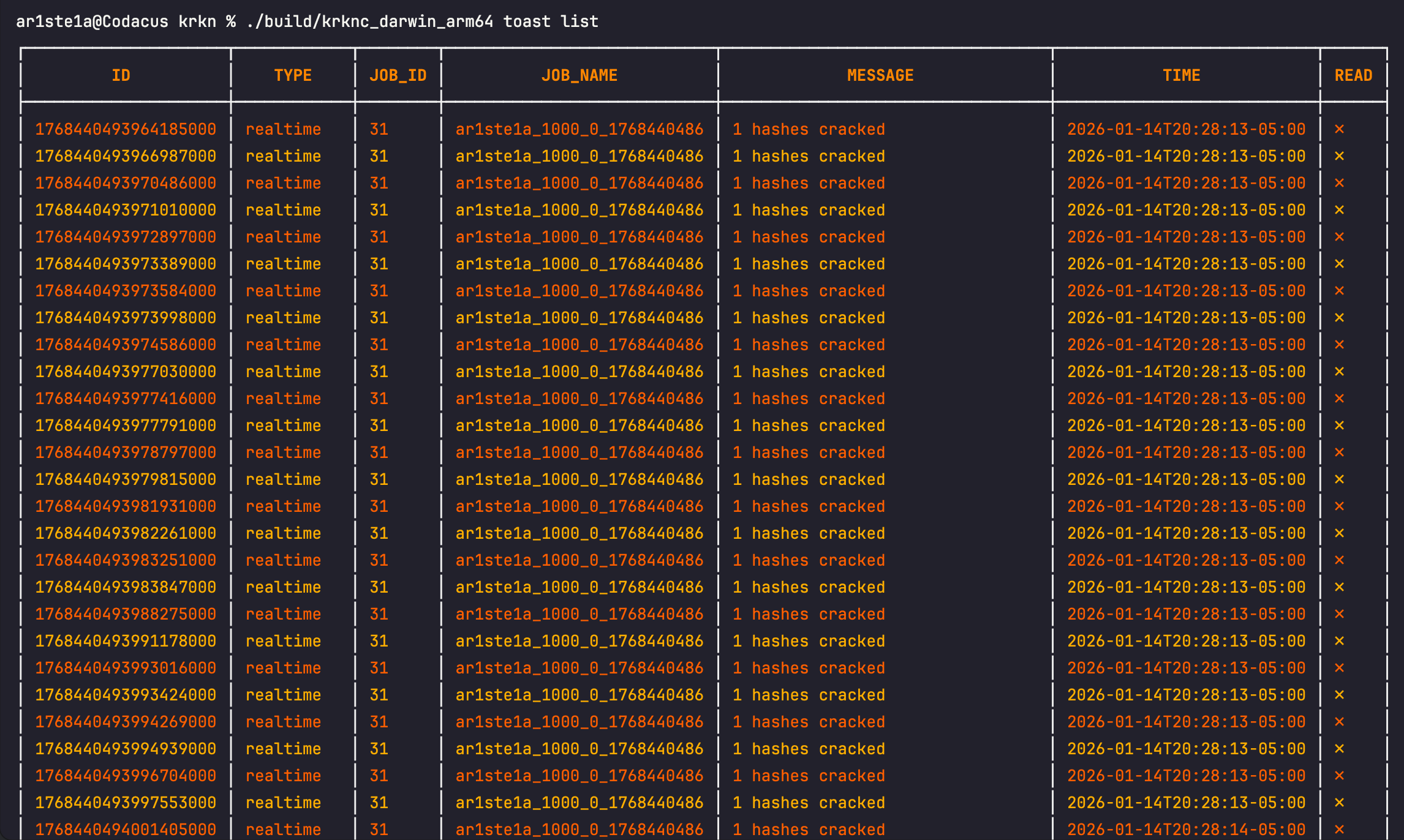
list subcommand can be used to display all toast messages received via webhooks.| Flag | Description |
|---|---|
| -u —unread | Only list unread toast messages |
Read
Read
The 
read subcommand can be used to mark all toast messages as read.Clear
Clear
| Flag | Description |
|---|---|
| -r —read | Only clear read toast messages |
clear subcommand can be used to clear all toast messages from the cache.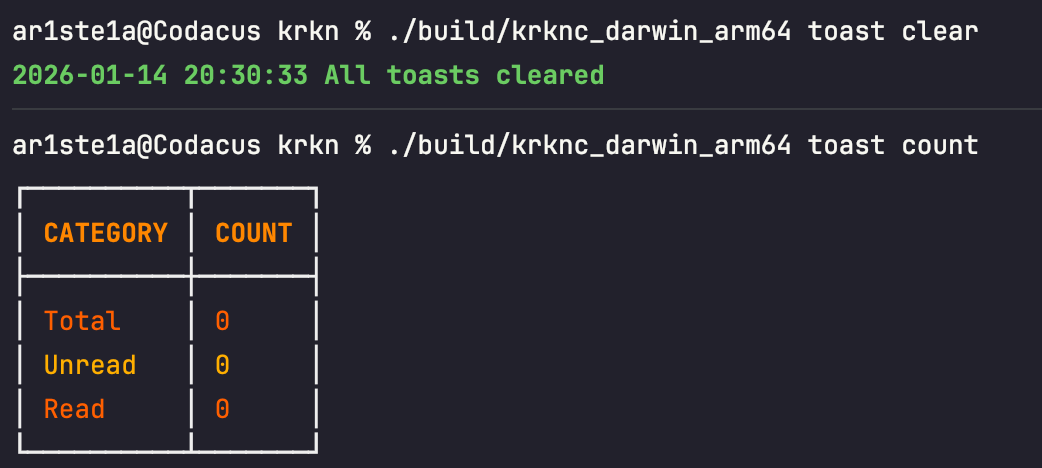
Server
Theserver subcommand can be used to query active workers for the conductor
Workers
Workers
The
The 
workers subcommand can be used to query the Krkn Server for worker informationList
List
| Flag | Description |
|---|---|
| -a —all | Show all columns |
list subcommand can be used to query tentacle workers and their status.Sender
Sender
The
The 
The 
The 
The 

sender subcommand can be used to query the Krkn Server to manage the email sender.- Confirm a new email sender
- Get the current email sender
- Set a new email sender
- Send a test email
Get
Get
The 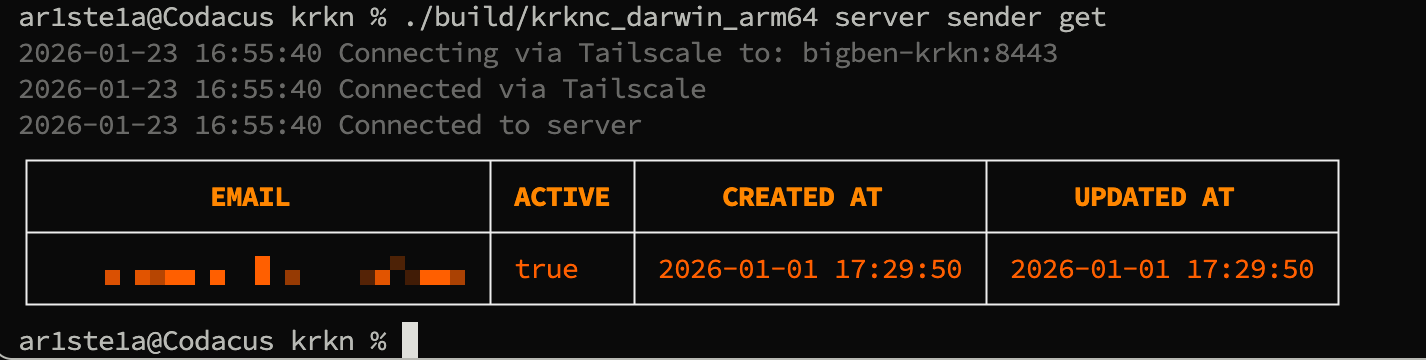
get subcommand can be used to query the active email sender.List
List
The 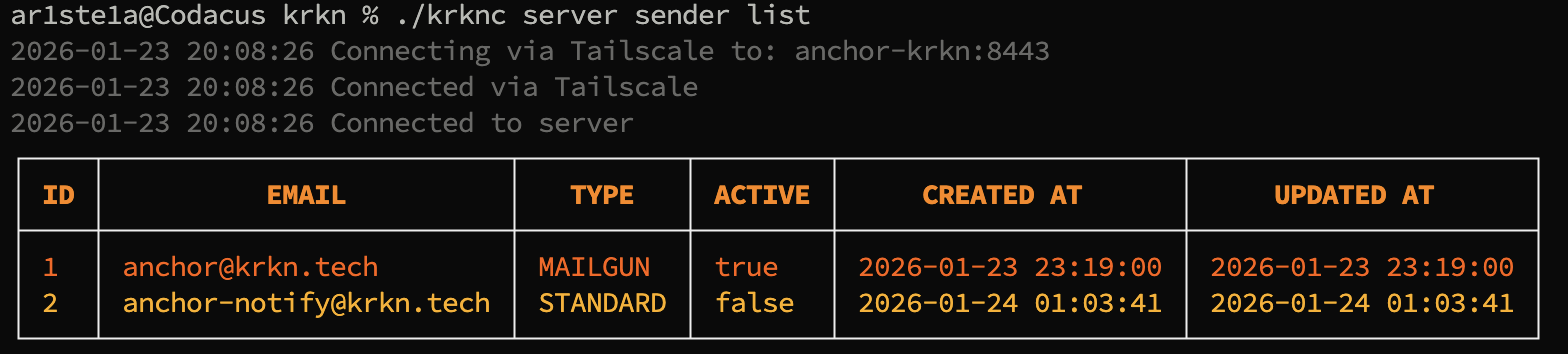
list subcommand lists all available email senders.Activate
Activate
| Args | Description |
|---|---|
| identifier | The ID or Email of the sender |
activate subcommand activates an available email sender.Test
Test
| Args | Description |
|---|---|
| The recipient of the test email |
test subcommand can be used to send a test email from the active email sender.Set
Set
The 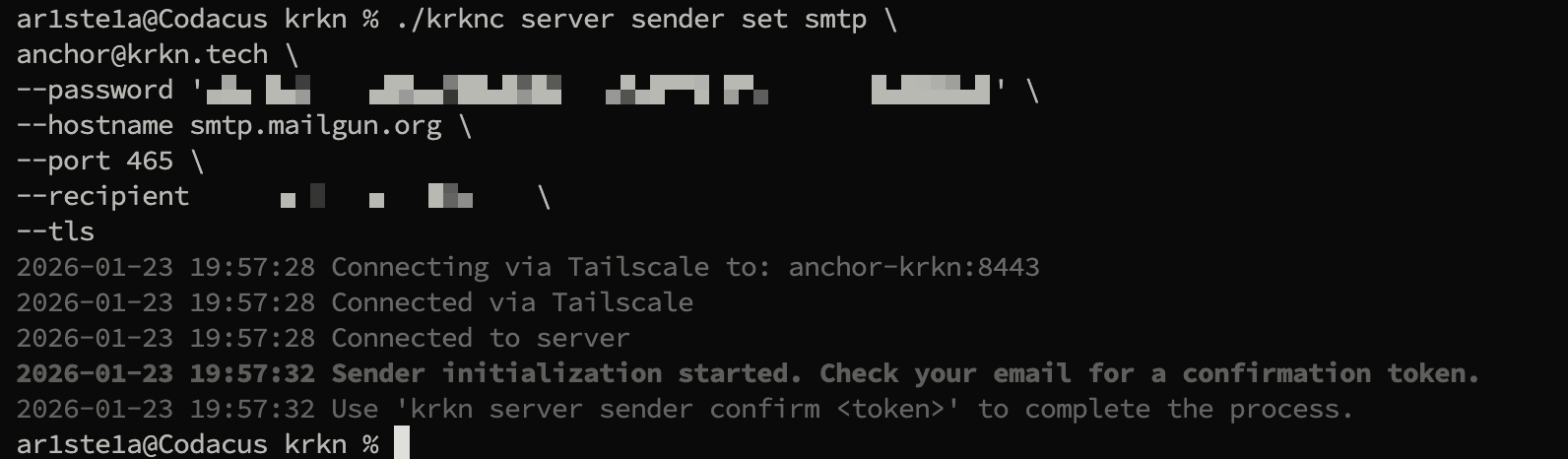
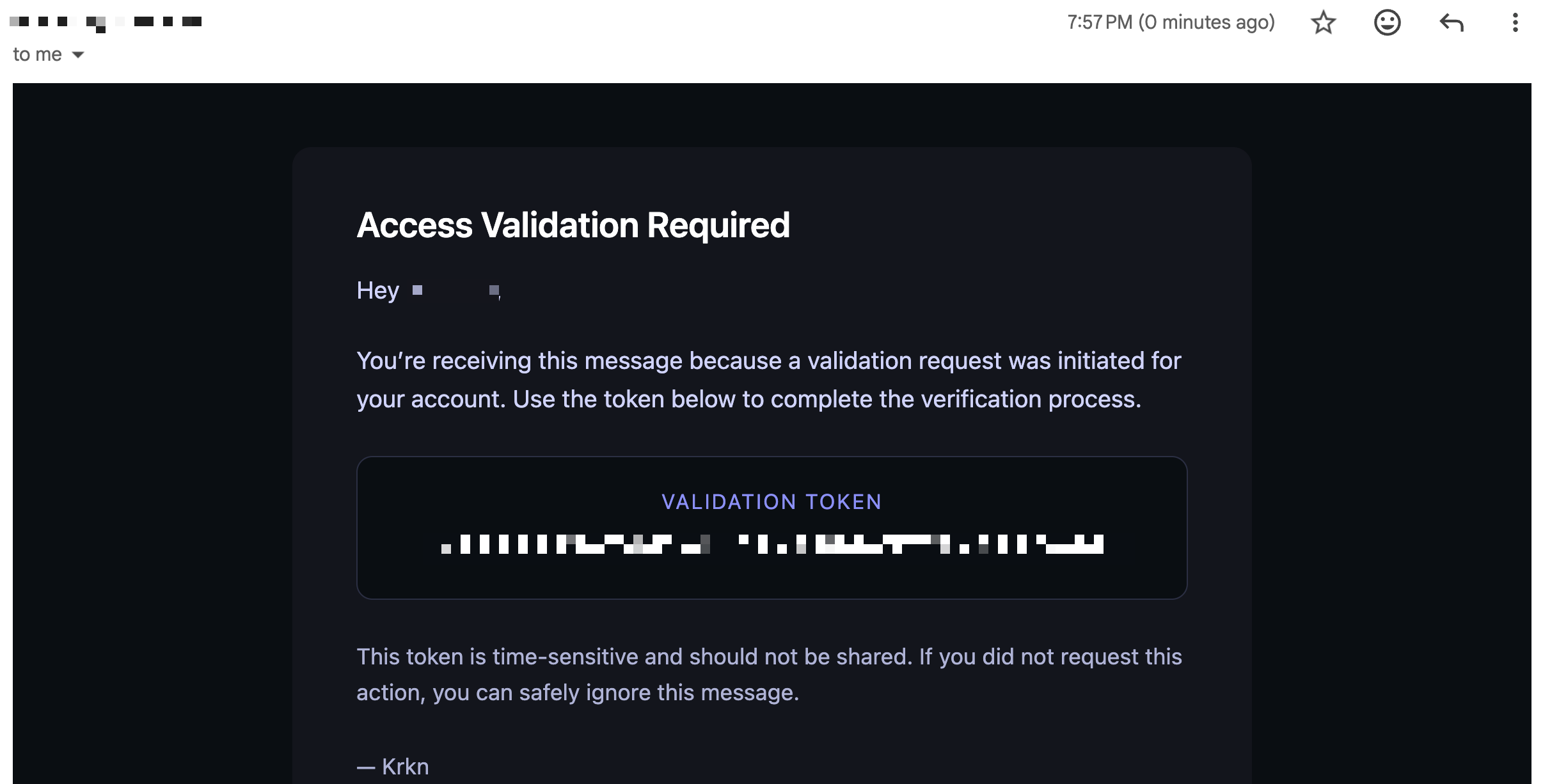
The
set subcommand can be used to set a new email sender.Microsoft Outlook / Office 365
Microsoft Outlook / Office 365
Gmail/Google Workspace
Gmail/Google Workspace
Mailgun
Mailgun
Sendgrid
Sendgrid
Standard SMTP
Standard SMTP
Args
| Args | Description |
|---|---|
| from-email | The email to send from |
Flags
| Flags | Description |
|---|---|
| -r —recipient | The recipient of the test email |
| —bounce | Bounce email address |
| —hostname | The SMTP Server hostname |
| —password | The SMTP Server password |
| —port | The SMTP Server port |
| —tls | Use TLS |
smtp subcommand can be used to create a new standard SMTP email sender.Confirm
Confirm
| Args | Description |
|---|---|
| token | The token received in the email sent from the set command |
confirmsubcommand can be used to confirm the new email sender.Delete
Delete
| Args | Description |
|---|---|
| identifier | The ID or Email of the sender |
delete subcommand deletes an email sender by idYou cannot delete an active sender, you must first activate an inactive one
Tailscale
When connecting over Tailscale, you must supply the Tailscale<hostname>-krkn of the destination server. You may supply just the hostname and the -krkn will be appended to the end.
The client will also have to be registered separately on Tailscale as its own node. The client will use the existing Tailscale connection and will host the hostname value supplied in the config otherwise the systems default hostname will be used.
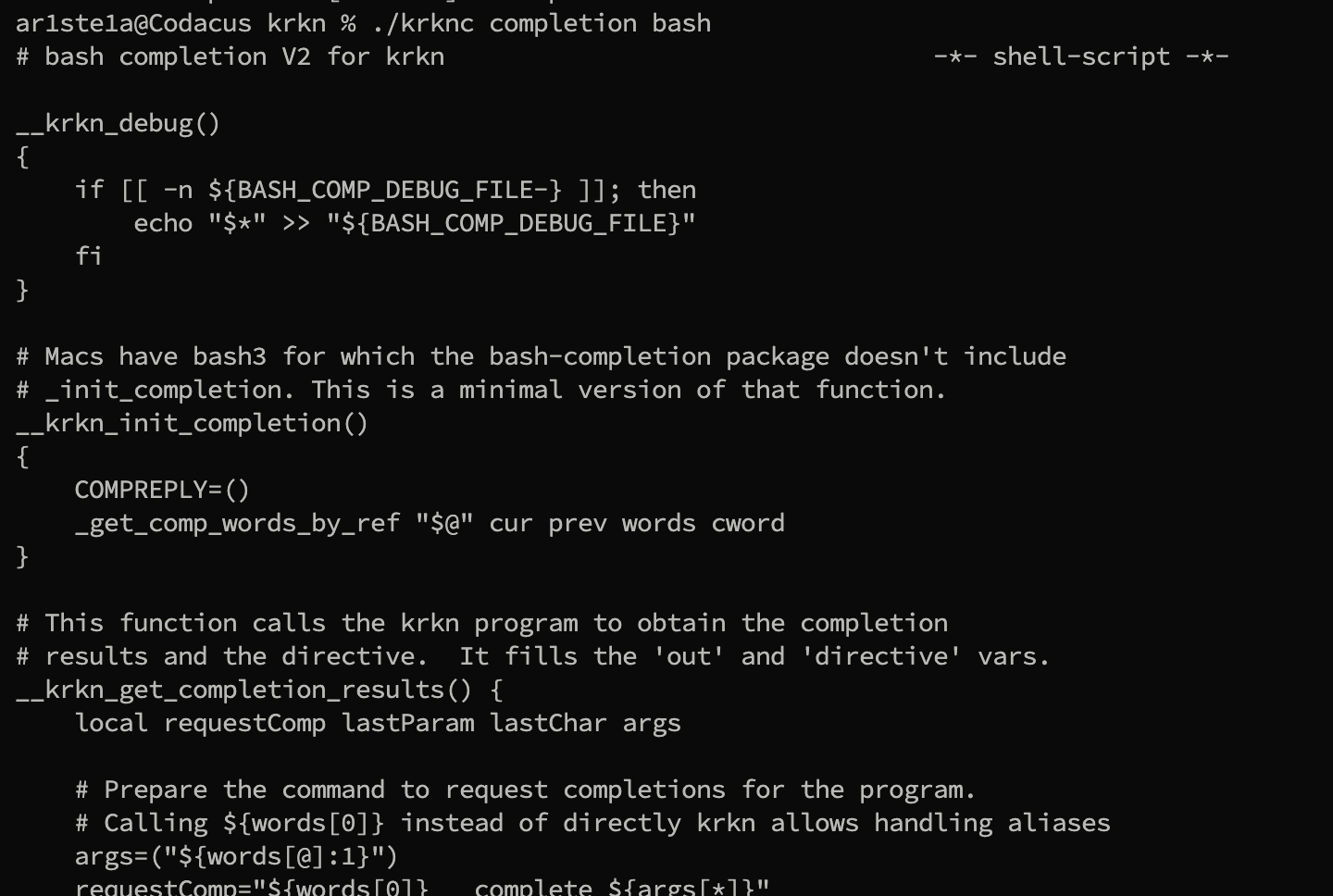
Auto-Completion
| Sub-Command | Description |
|---|---|
| bash | Generate the autocompletion script for bash |
| fish | Generate the autocompletion script for fish |
| powershell | Generate the autocompletion script for powershell |
| zsh | Generate the autcompletion script for zsh |
Bash Sample