> ## Documentation Index
> Fetch the complete documentation index at: https://wiki.krkn.tech/llms.txt
> Use this file to discover all available pages before exploring further.
# Spray-n-Pray
> Autonomous Password Sprayer
# Spray 'n Pray
Introducing Spray 'n Pray
# Spray 'n Pray - Autonomous Password Spraying Tool
Spray 'n Pray is an automated password spraying tool. With its roots originally in Active Directory, Spray 'n Pray is a **Go Native SPA** application that utilizes the **go-fiber framework**, **Vanilla JS**, **sqlc + SQLite3** and **Web Sockets** to create an easy to use interface that can be left unattended to perform a scheduled set of password sprays in an environment, externally, or via **SOCKS5 Proxy** using logically isolated infrastructure.
 # What Spray 'n Pray Does
Spray 'n Pray is capable of spraying the following protocols:
| Protocol | Socks Proxyable | Safe Mode Compatible | Notes |
| ------------- | --------------------- | --------------------- | ----------------------- |
| ADWS | | | |
| FTP | | | |
| HTTP | | | |
| HTTPS | | | |
| KERBEROS (v5) | | | |
| LDAP | | | |
| LDAPS | | | |
| MSSQL | | | |
| RDP | | | |
| SMB (v1,2,3) | | | Auto Negotiates Version |
| SSH | | | |
| OWA | | | Not Yet Implemented |
Spray 'n Pray is capable of notifying a set of recipients for a series of event occurrences:
| Type | Description | Notes |
| ---------- | ------------------------------------- | ----------------------------------- |
| Lockout | When an account is locked out | Safe Mode Compatible Protocols Only |
| Threshold | When a lockout threshold is met | Safe Mode Compatible Protocols Only |
| Valid HIts | When a valid credential is discovered | N/A |
# Compatible Operating Systems
## Coming Soon
# Getting Started
To use Spray 'n Pray the user needs to retrieve a copy of the latest binary from the KrakenTech [Release](https://hub.krkn.tech/KrakenTech/spray-n-pray-support) and do the following:
On the attacker host, simply ensure the binary is executable and run the file. It is recommended to do so in a screen session. Interruptions will not disrupt the application but will prevent future sprays from occurring until the app is started again.
# What Spray 'n Pray Does
Spray 'n Pray is capable of spraying the following protocols:
| Protocol | Socks Proxyable | Safe Mode Compatible | Notes |
| ------------- | --------------------- | --------------------- | ----------------------- |
| ADWS | | | |
| FTP | | | |
| HTTP | | | |
| HTTPS | | | |
| KERBEROS (v5) | | | |
| LDAP | | | |
| LDAPS | | | |
| MSSQL | | | |
| RDP | | | |
| SMB (v1,2,3) | | | Auto Negotiates Version |
| SSH | | | |
| OWA | | | Not Yet Implemented |
Spray 'n Pray is capable of notifying a set of recipients for a series of event occurrences:
| Type | Description | Notes |
| ---------- | ------------------------------------- | ----------------------------------- |
| Lockout | When an account is locked out | Safe Mode Compatible Protocols Only |
| Threshold | When a lockout threshold is met | Safe Mode Compatible Protocols Only |
| Valid HIts | When a valid credential is discovered | N/A |
# Compatible Operating Systems
## Coming Soon
# Getting Started
To use Spray 'n Pray the user needs to retrieve a copy of the latest binary from the KrakenTech [Release](https://hub.krkn.tech/KrakenTech/spray-n-pray-support) and do the following:
On the attacker host, simply ensure the binary is executable and run the file. It is recommended to do so in a screen session. Interruptions will not disrupt the application but will prevent future sprays from occurring until the app is started again.
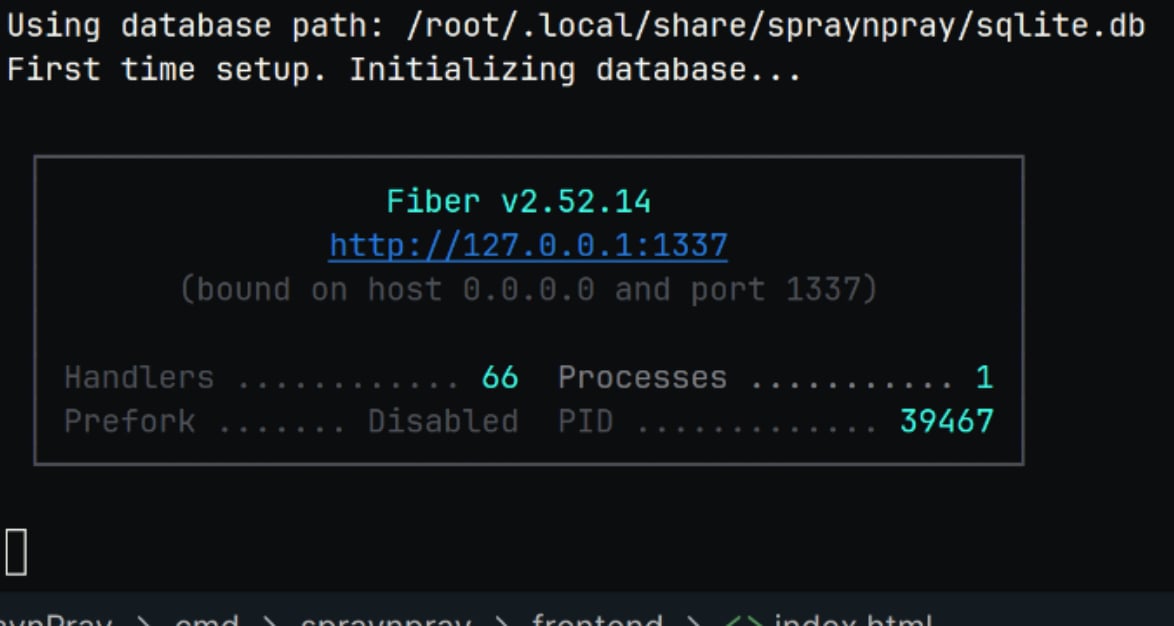 After successfully starting the bin, access it on the web.
* Port: 1337
* Interface: 0.0.0.0
After successfully starting the bin, access it on the web.
* Port: 1337
* Interface: 0.0.0.0
 # First Time Startup
On initial start up it will generate a SQLite3 database at `$HOME/.local/share/spraynpray`
It will then attempt to enumerate the domain and any domain controllers in the environment as target hosts.
## Domains
### Adding a domain
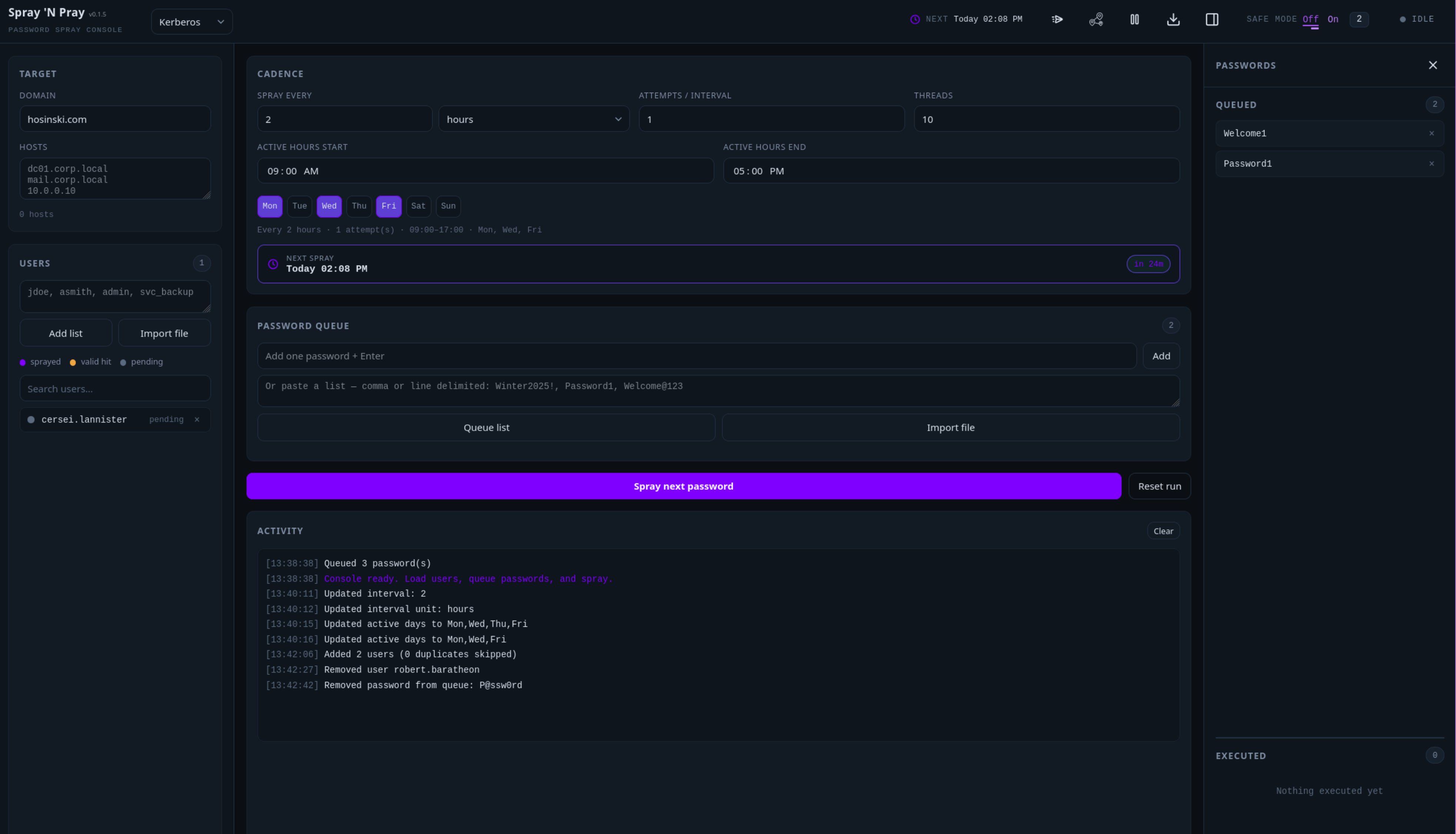
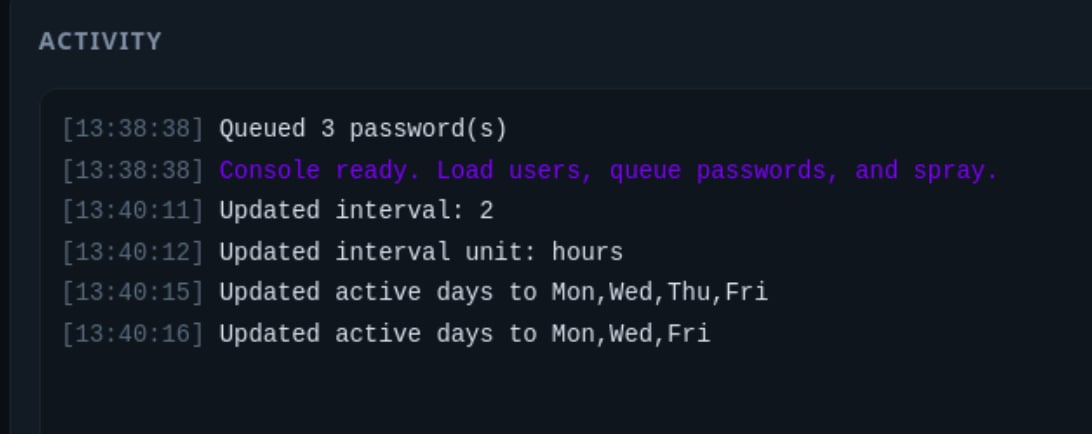
For Active Directory, the domain can be overwritten and confirmed in the activity pane in real-time.
# First Time Startup
On initial start up it will generate a SQLite3 database at `$HOME/.local/share/spraynpray`
It will then attempt to enumerate the domain and any domain controllers in the environment as target hosts.
## Domains
### Adding a domain
For Active Directory, the domain can be overwritten and confirmed in the activity pane in real-time.
 The domain field can be left as empty in which case a local authentication spray will be conducted if possible.
## Hosts
### Adding target hosts
Target hosts can be supplied in the Hosts input field, newline delimited.
The domain field can be left as empty in which case a local authentication spray will be conducted if possible.
## Hosts
### Adding target hosts
Target hosts can be supplied in the Hosts input field, newline delimited.
 #### Example
```text theme={null}
10.3.10.10
10.3.10.11
dc1.sevenkingdoms.local
```
### Unresponsive Hosts
Hosts that become unresponsive during the spray attempt will be marked in red below the input field. They will be attempted again during the next spray if they are not removed.
#### Example
```text theme={null}
10.3.10.10
10.3.10.11
dc1.sevenkingdoms.local
```
### Unresponsive Hosts
Hosts that become unresponsive during the spray attempt will be marked in red below the input field. They will be attempted again during the next spray if they are not removed.
 ## Users
### Adding Users
#### Users can be supplied in three different ways
## Users
### Adding Users
#### Users can be supplied in three different ways
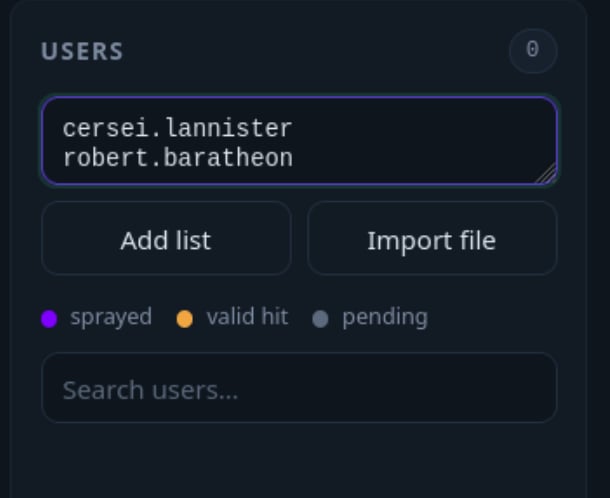 User(s) can be added using the Users Input field. These must either be comma or newline delimited.
```text theme={null}
s.smith, b.smith, c.smith
```
```text theme={null}
a.smith
s.smith
b.smith
```
Users should be added in sAMAccountName format, the domain will be appended as necessary.
User(s) can also be added using an input file with newline deliimited values.
```text theme={null}
// Users.txt
a.smith
b.smith
c.smith
```
Spray 'n Pray already handles de-duplication of users
### Modifying Users
A user can be searched using the search field above the users. Once found, they can be deleted but not modified. A deleted user can be re-added again later.
User(s) can be added using the Users Input field. These must either be comma or newline delimited.
```text theme={null}
s.smith, b.smith, c.smith
```
```text theme={null}
a.smith
s.smith
b.smith
```
Users should be added in sAMAccountName format, the domain will be appended as necessary.
User(s) can also be added using an input file with newline deliimited values.
```text theme={null}
// Users.txt
a.smith
b.smith
c.smith
```
Spray 'n Pray already handles de-duplication of users
### Modifying Users
A user can be searched using the search field above the users. Once found, they can be deleted but not modified. A deleted user can be re-added again later.
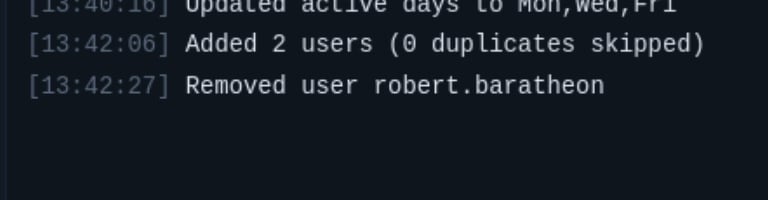 ### User Statuses
Users can be in one of three different status. A grey indicator means that they have not yet been a part of a spray attempt. Purple indicates that the user was part of a spray and orange indicates they have credentials discovered.
### User Statuses
Users can be in one of three different status. A grey indicator means that they have not yet been a part of a spray attempt. Purple indicates that the user was part of a spray and orange indicates they have credentials discovered.
 ## Passwords
### Enqueuing Passwords
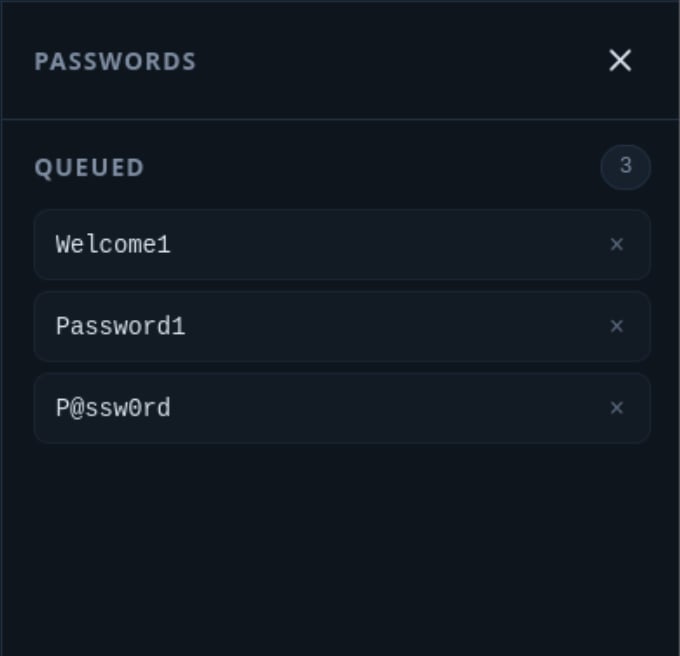
Passwords can be added similarly to users in that they can be added adhoc, comma or newline delimited or as a file upload. It is recommended to upload users with commas using the single entry or file upload.
## Passwords
### Enqueuing Passwords
Passwords can be added similarly to users in that they can be added adhoc, comma or newline delimited or as a file upload. It is recommended to upload users with commas using the single entry or file upload.
 ```text theme={null}
Password123!
```
```text theme={null}
Password123!,Password2,Welcome01
```
```text theme={null}
Password123!
Password2
Welcome01
```
```text theme={null}
// Passwords.txt
Password123!
Password2
Welcome01
```
## Removing Passwords
Passwords in the queue can be removed by clicking the on their card.
```text theme={null}
Password123!
```
```text theme={null}
Password123!,Password2,Welcome01
```
```text theme={null}
Password123!
Password2
Welcome01
```
```text theme={null}
// Passwords.txt
Password123!
Password2
Welcome01
```
## Removing Passwords
Passwords in the queue can be removed by clicking the on their card.
 ## Executions
The executed list is a historical record of all previous password attempts. Clicking an item of the list will tell you the protocol used, and list an successfully sprayed users for the execution. An execution will appear in orange if it was successful.
## Executions
The executed list is a historical record of all previous password attempts. Clicking an item of the list will tell you the protocol used, and list an successfully sprayed users for the execution. An execution will appear in orange if it was successful.
 ## Reset Run
The reset run button will place all previously executed passwords back into the queue to be sprayed again.
## Reset Run
The reset run button will place all previously executed passwords back into the queue to be sprayed again.
 ## Cadence
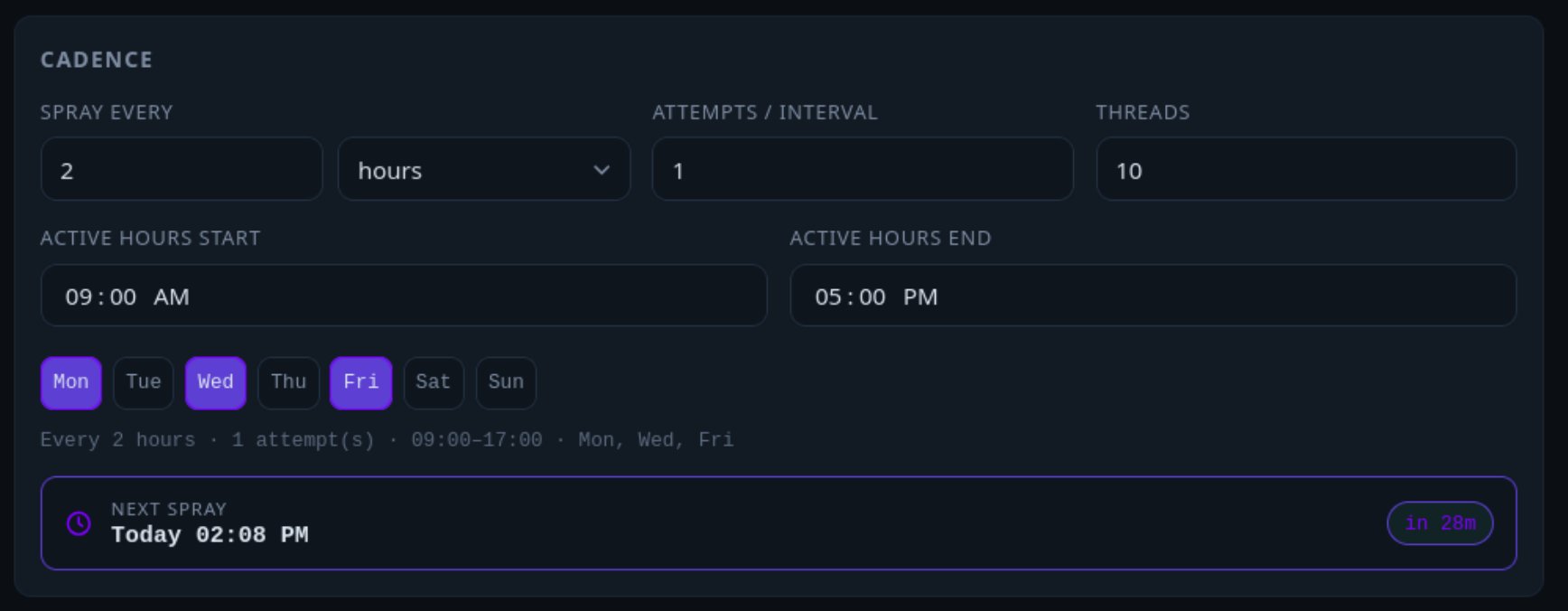
Cadence represents the valid time frame and number of sprays to run in a given interval.
The user can specify what days of the week and the time of day to use when calculating the next scheduled run time. They can also specify how many threads should be used during the execution.
The cadence section allows the user to specify minutes, hours and says as interval units and the number of sprays / interval in the Attempts/Interval field.
### Example
Spray once every 2 hours on Monday, Wednesday and Friday using 10 threads
## Cadence
Cadence represents the valid time frame and number of sprays to run in a given interval.
The user can specify what days of the week and the time of day to use when calculating the next scheduled run time. They can also specify how many threads should be used during the execution.
The cadence section allows the user to specify minutes, hours and says as interval units and the number of sprays / interval in the Attempts/Interval field.
### Example
Spray once every 2 hours on Monday, Wednesday and Friday using 10 threads
 ## Safe Mode
Safe mode utilizes the responses from the protocol to determine whether or not the sprayed user's account is locked out. This is only applicable to some protocols, most of which utilize Active Directory. You can set a maximum threshold of locked out users before the spray is terminated and the run results are converted into an execution.
The spray will still track cracked accounts for a prematurely stopped spray. It will indicate the number of users that were successfully sprayed as the total instead of the full count.
Any locked out accounts will appear in the activity pane along with a message indicating that the spray was stopped due to the safety threshold.
## Safe Mode
Safe mode utilizes the responses from the protocol to determine whether or not the sprayed user's account is locked out. This is only applicable to some protocols, most of which utilize Active Directory. You can set a maximum threshold of locked out users before the spray is terminated and the run results are converted into an execution.
The spray will still track cracked accounts for a prematurely stopped spray. It will indicate the number of users that were successfully sprayed as the total instead of the full count.
Any locked out accounts will appear in the activity pane along with a message indicating that the spray was stopped due to the safety threshold.
 ## Spray Next Password
In the event that the user would like to run a password spray now, they can hit the Spray Next Password Button to move the execution up to now. This will run a spray and recalculate the next valid run time.
It is best to ensure the Cadence is correct before hitting the Spray Next Password button.
# Notifications
To support Spray 'n Pray's autonomous work, you can configure a sending profile and recipients for even alerts in the Notifications Pane. It is possible to set a mail sending account that utilizes one of the following SMTP services:
* Mailgun
* Sendgrid
* Outlook
* Standard SMTP
* StartTLS
* TLS
* ESMTP
A list of recipients can be added, and a test email can be sent to these inboxes using the button on their card.
You can specify the types of events that should be sent to these recipients using the checkboxes. The event types are:
* Lockouts - An account was locked out during a spray
* Valid HIts - Successful spray credential discovered
* Unresponsive Hosts - A target host was deemed unresponsive during the spray
## Spray Next Password
In the event that the user would like to run a password spray now, they can hit the Spray Next Password Button to move the execution up to now. This will run a spray and recalculate the next valid run time.
It is best to ensure the Cadence is correct before hitting the Spray Next Password button.
# Notifications
To support Spray 'n Pray's autonomous work, you can configure a sending profile and recipients for even alerts in the Notifications Pane. It is possible to set a mail sending account that utilizes one of the following SMTP services:
* Mailgun
* Sendgrid
* Outlook
* Standard SMTP
* StartTLS
* TLS
* ESMTP
A list of recipients can be added, and a test email can be sent to these inboxes using the button on their card.
You can specify the types of events that should be sent to these recipients using the checkboxes. The event types are:
* Lockouts - An account was locked out during a spray
* Valid HIts - Successful spray credential discovered
* Unresponsive Hosts - A target host was deemed unresponsive during the spray
 Once notifications have been configured, the notifications button will appear as green.
 ### Sample Email
 # Socks5 Proxies
Spray 'n Pray is capable of proxying password spray attempts through a series of ssh accessible hosts using a socks5 proxy. To do this, simply supply the credentials to the host and its address in the Socks Pane.
Not all services can be proxied, currently Kerberos is not yet proxy compatible.
Proxies can be configured with the following authentication methods:
* Password
* Certificate
Once you have configured the hosts, enable proxy mode in the pane before closing it.
# Socks5 Proxies
Spray 'n Pray is capable of proxying password spray attempts through a series of ssh accessible hosts using a socks5 proxy. To do this, simply supply the credentials to the host and its address in the Socks Pane.
Not all services can be proxied, currently Kerberos is not yet proxy compatible.
Proxies can be configured with the following authentication methods:
* Password
* Certificate
Once you have configured the hosts, enable proxy mode in the pane before closing it.
 Once proxies have been configured and the proxy is enabled, the proxy button will appear in green.
 Sample Proxy Traffic
