> ## Documentation Index
> Fetch the complete documentation index at: https://wiki.krkn.tech/llms.txt
> Use this file to discover all available pages before exploring further.
# First Time Setup
> Installing your krkns
## Aliasing and configuration setup
To start, use the krkns install command to create global aliases, enumerate environment variables and initialize the directories for the configurations.
 Optionally, if you would like to install Krkns as a service, you can now run the `service install` command. If the environment variables for `KRKN_DATA` or `TS_AUTHKEY` are set, thjis will add them to the service file defined. Otherwise you will need to define them after.
Next, you can configure settings using the `config get` and `config set` commands before starting the service. If you chose to run as a service you will first need to perform first time setup using the `krkns serve` command before enabling the service `systemctl --user enable --now krkn-server.service`)
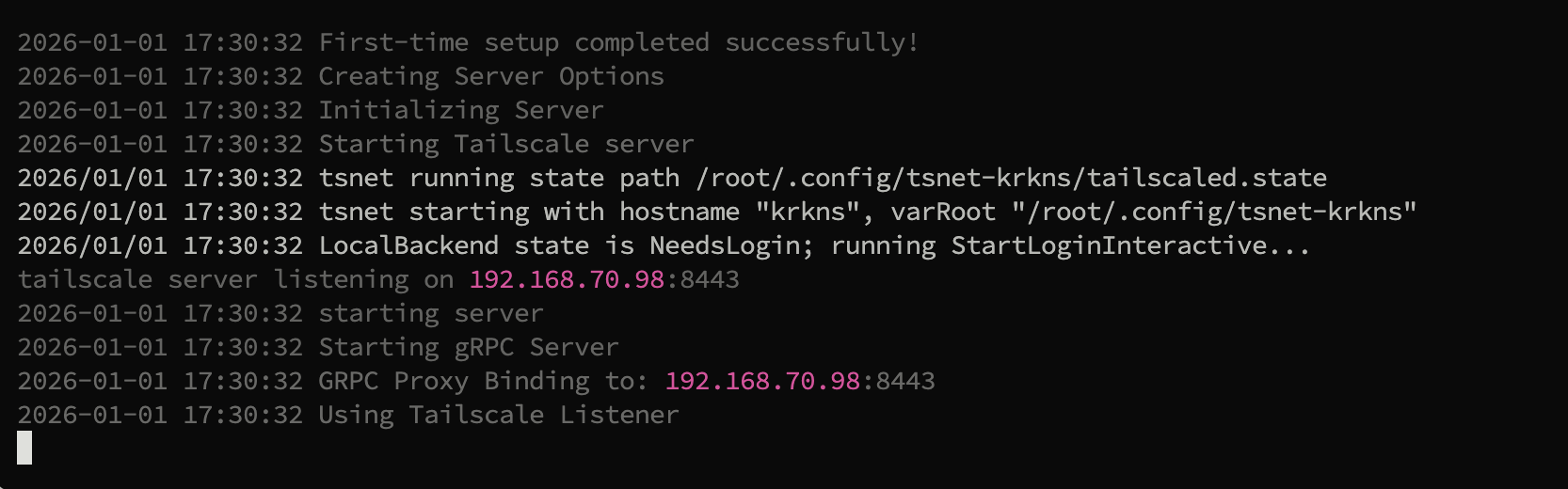
Upon launching the Krkn Se~~r~~ver if a database does not yet exist, the user will be prompted to begin the first time setup process.
Optionally, if you would like to install Krkns as a service, you can now run the `service install` command. If the environment variables for `KRKN_DATA` or `TS_AUTHKEY` are set, thjis will add them to the service file defined. Otherwise you will need to define them after.
Next, you can configure settings using the `config get` and `config set` commands before starting the service. If you chose to run as a service you will first need to perform first time setup using the `krkns serve` command before enabling the service `systemctl --user enable --now krkn-server.service`)
Upon launching the Krkn Se~~r~~ver if a database does not yet exist, the user will be prompted to begin the first time setup process.
 ### Specifying a Sending Email
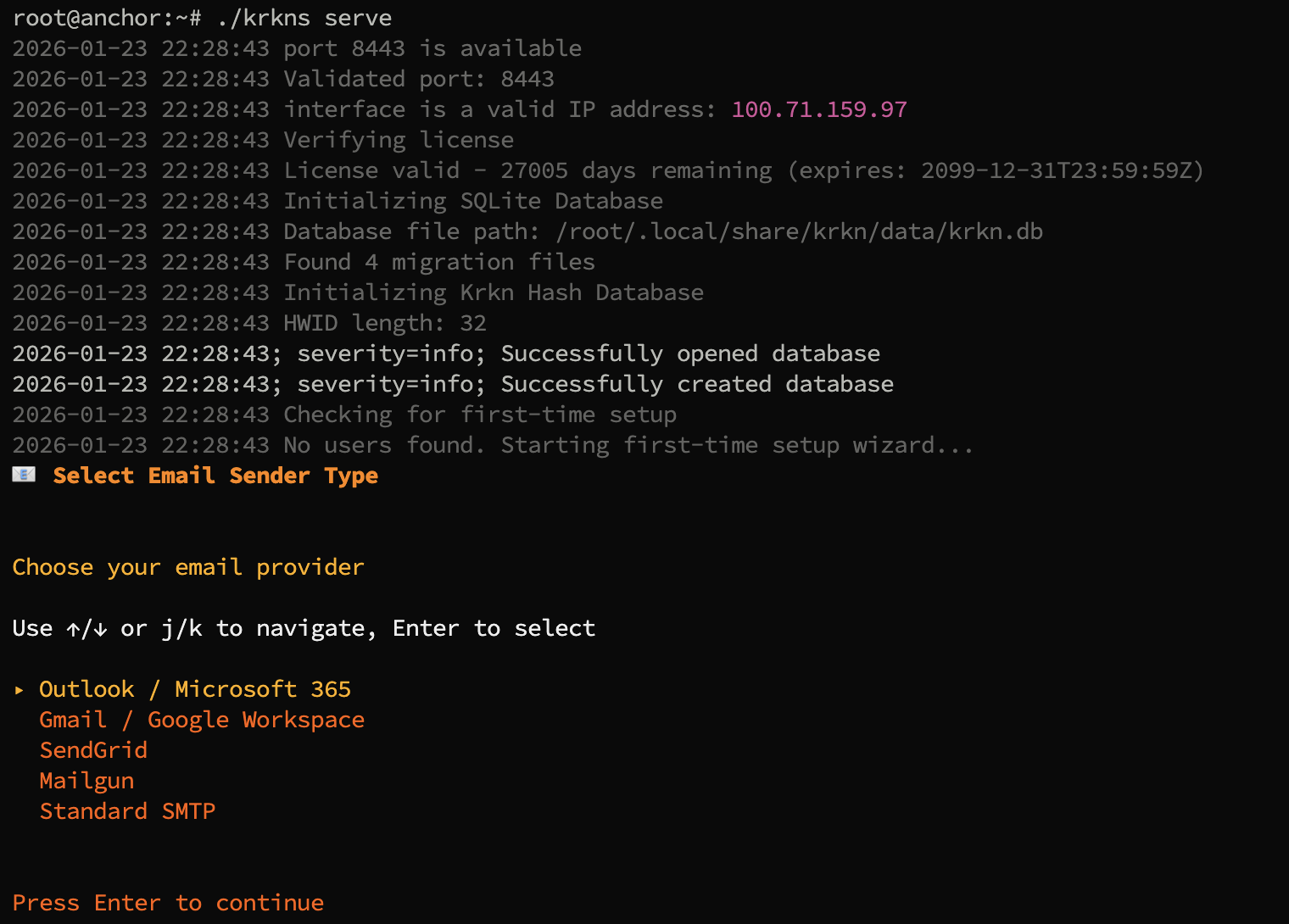
In order to begin a new Krkn server, a sending email must be provided.
Currently only the following SMTP Senders are implemented:
* Outlook
* The app password can be generated at the [Microsoft Security Info](https://mysignins.microsoft.com/security-info) page.
* Google
* The app password can be generated at the [App Passwords](https://myaccount.google.com/apppasswords) page.
* Mailgun
* Sengrid
* Standard SMTP
* TLS
* StartTLS
This sending email will be used to:
* Add new users to the Krkn Server.
* Reset user tokens
### Admin User
After selecting a sending email, the admin user must be created. To do so, we first supply a username followed by an email address.
Once the admin user information has been populated, a token email will be sent to the admin user from the sending email.
### Specifying a Sending Email
In order to begin a new Krkn server, a sending email must be provided.
Currently only the following SMTP Senders are implemented:
* Outlook
* The app password can be generated at the [Microsoft Security Info](https://mysignins.microsoft.com/security-info) page.
* Google
* The app password can be generated at the [App Passwords](https://myaccount.google.com/apppasswords) page.
* Mailgun
* Sengrid
* Standard SMTP
* TLS
* StartTLS
This sending email will be used to:
* Add new users to the Krkn Server.
* Reset user tokens
### Admin User
After selecting a sending email, the admin user must be created. To do so, we first supply a username followed by an email address.
Once the admin user information has been populated, a token email will be sent to the admin user from the sending email.
 ### Confirming the Token
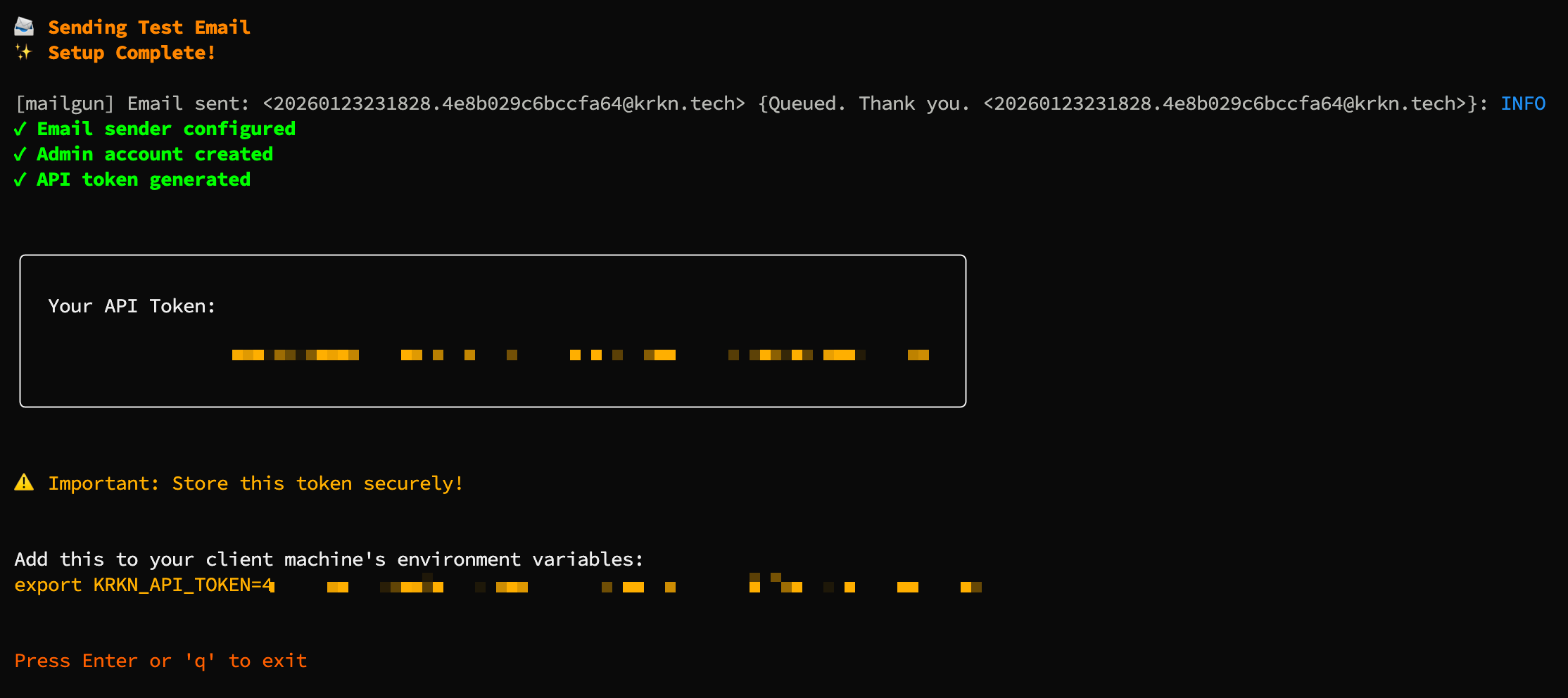
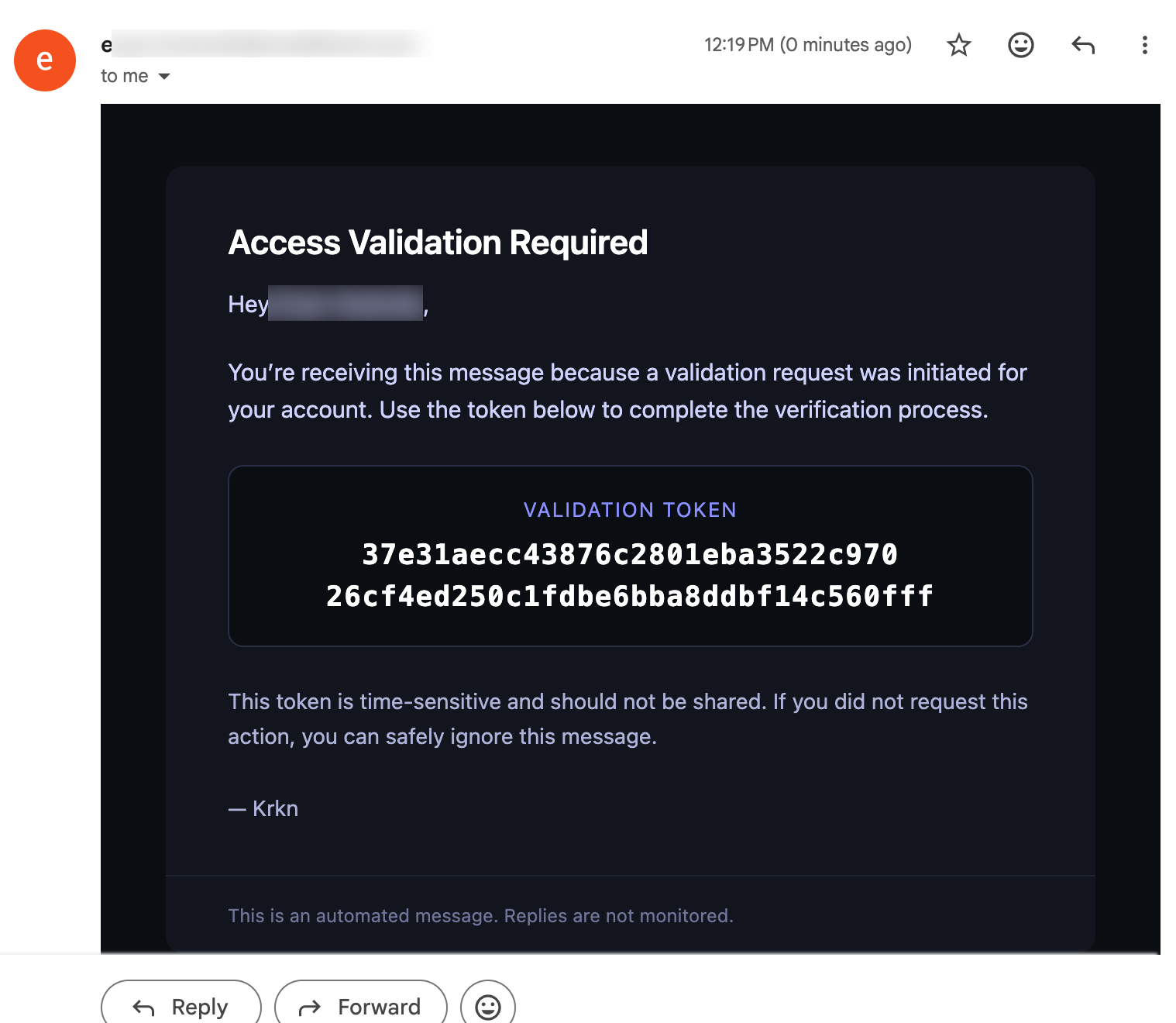
Once the token is received, the user can then provide it to the Krkn Server to verify receipt and initialize the server.
### Confirming the Token
Once the token is received, the user can then provide it to the Krkn Server to verify receipt and initialize the server.